Designing a cross-platform system that allows low vision users to read an image’s Alt Text without activating a screen reader.
atform: Desktop

Platform: Desktop / iOS

Role:  UX Researcher and UI Designer

Project Type: Social Media Feature Add-On, Vibe-Coded Google Chrome Extension

Industry: Accessibility, Social Media, AI

Tools: Figma, Claude, Zoom, Descript, Whimsical

Summary:
Exploring the visual display of Alt Text for people with low vision

People who have low vision use a wide variety of tools to accomplish their day-to-day needs. During our research, we learned that some blind people use a combination of screen readers and magnification on different devices depending on the specific task they are trying to accomplish.

We learned of a disconnect about the utility of Alt Text. It is displayed when a screenreader user navigates over an image, but not everyone uses a screenreader all the time. Thus, alt text is actually hidden for people who might learn information from an image that they cannot see.

AI presents unique opportunities in this field - using it to describe images whose alt text was previously manually left blank is an exciting prospect, but always misses context and cannot necessarily understand what the specific user is trying to learn from an image.

We looked at social media - Facebook specifically - as a testing ground for a visual display button for alt text. We then build a chrome extension (using Claude) which displays Alt text visually, and can be activated for a low vision user's complete desktop browser experience.

Background:

About Blindness and Low Vision:


“Blind people are not a monolith. Everybody does things a little differently.

- One user during our usability study


Only 15-18% of legally blind people are totally blind. (SOURCE: Iowa Dept for the Blind)

Blindness is a spectrum; people who have low vision have varying degrees of visual acuity. How they see at any given moment is influenced by the relative brightness of the world around them, time of day, room lighting, eye fatigue, and more.

About Accessibility in General:

Accessibility is defined as the design of products, devices, services, vehicles, or environments to be usable by disabled people.

There are a variety of reasons why accessibility is a deeply important consideration in digital design. For starters, it’s simply the right thing to do - it is a way to break a cycle of exclusionary practices towards people with disabilities and provide an experience that they can use.

It’s also a tenet of good design. Design is fundamentally the practice of making the world a more friendly and usable place for all. All too often, sighted designers prioritize the visual world alone - focusing on pixel-perfect experiences but not necessarily creating accessible ones. These two things should go hand-in-hand.

Lastly, there is a strong business case for Accessibility. According to The World Economic Forum, “By 2030 the global assistive technology market is expected to be worth $31.22 billion. 3.5 billion people will be using assistive products by 2050.”

The Problem:

For sighted and low vision users, Alt text is inaccessible without a screen reader.


Alt text might contain useful information to add context or additional detail to someone with partial vision, but they can’t access it without using a screenreader.

What if there were a way to make Alt Text accessible to everyone?


Inspired by a suggestion from a friend who has low vision, we explored building a tool that could make that possible.

Comparative Analysis

We started by exploring Alt text plugins and services,

all of which do very different things.

Is there already a simple way to display Alt Text visually for low vision end users?

No, not really. In part this is because many of the conversations around alt text are rooted in compliance and SEO. 

On Alt Text.AI and Scribely

Two of the companies above (Alttext.ai and Scribely) provide services to help companies write alt text for their websites - using AI and human writers respectively. This is an interesting question (whether to use AI to write alt text or not) which we will come back to later.

Interestingly, Scribely’s website uses a visual display button designed to showcase their images’ manually written alt text to potential clients. This button/display system proved to be one of several inspirations that we revisited during the design stage of our prototype.

On Userway and Equalweb

The other tools - Userway and Equalweb - provide accessibility overlays to the websites of their clients. The debate over the efficacy of accessibility overlays notwithstanding, we wanted to look at these tools to see if they provided some visual display of Alt Text as a reference. We found that Equalweb does use an image description overlay - but it's a little tricky to use. You need to move your mouse cursor atop an image for the text to display. Once you’ve done that, the alt text will display at an inconsistent place on the screen relative to the image, so it is not necessarily a reliable tool for low vision users.

On The Image Alt Tex Viewer Chrome Extension

The Image Alt Text Viewer chrome extension can display the alt text for every image when turned on, but it introduces a significant amount of visual clutter to the screen. It was designed for developers to ensure that all images on their page contain alt text, so that they could quickly view text and fix it if necessary. It was not, however, designed for end users to simply obtain additional information about an image - it displays alt text for SVGs and background images, creating a significant amount of visual clutter on every page it touches.

The existing Image Alt Text Viewer extension for Google Chrome. It's interesting, if a little chaotic

User Interviews

A few of our favorite quotes from the interviews

“Text is a very simple, predictable thing... the image could be anything!”

“If the alt text is too long, I’ll just turn on VoiceOver instead.”

“[Visually displaying Alt Text] is a gateway drug for sighted people to get more accustomed to the idea of accommodations.” 

“Blind people are not a monolith... Everybody does things a little differently.”

Our affinity map, generated from analysis of these user interviews

Summary of a key findings:


  • All users use a different combination of low vision and screen reader accessibility tools.

    Several of them lean more towards screenreaders, several lean more towards magnification. This means that great care will need to be taken in order to design a tool a wide variety of users will consider helpful.


  • Most users use mobile as their primary way of navigating the web and social media.

    Desktop is becoming less and less common as the main way people interact with the internet, though some users use it deliberately for specific tasks. This is also consistent with the general public's technology usage.


  • If AI is involved in describing Alt Text, all users preferred some kind of indication that it was automatically generated and not manually written.

    This reinforces the point that AI can be very useful but its descriptions should be taken with a grain of salt. At best they lack context and don’t fully understand the image or its purpose, and at worst they’re flat-out wrong. Still, by and large, AI descriptions are better than no description.


  • Most users have built a practice of screenshotting or downloading images and then loading them into an app like Seeing AI or Be My AI for image description.

    Perhaps a better, more thorough or accurate LLM can be integrated into the social media uploading / posting process to reduce friction and remove this additional step?


  • Images with embedded present unique challenges

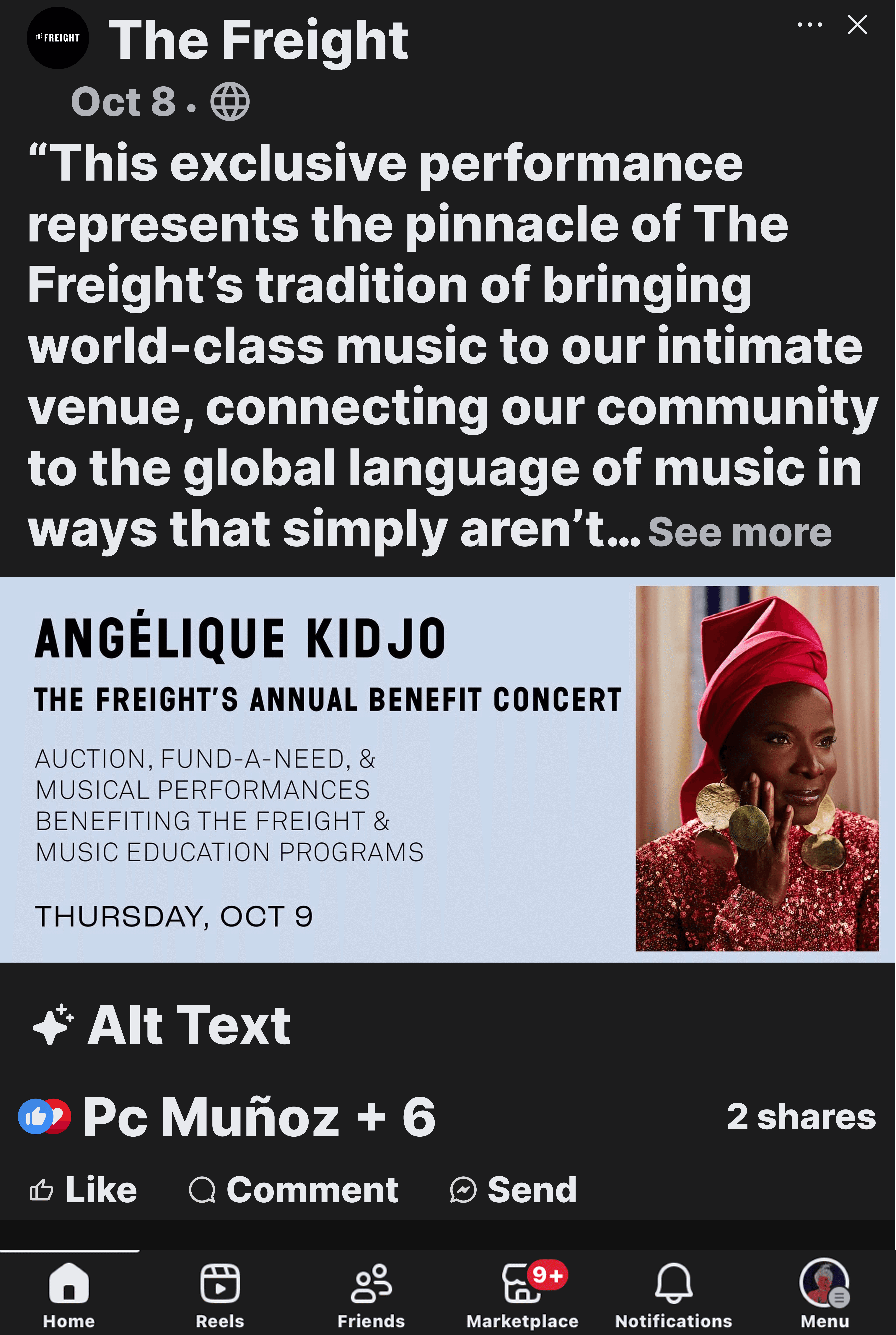
    Often, people who upload an image with embedded text (an event flier, for example) to social don't include all the same information found in the image (or practical additional context) in the text portion of a post. As a result, a low vision user may struggle with extracting the information from that image - when, where, or who is involved etc. When a user screenshots the image and drops it into Chatgpt, for example, it's a toss-up whether or not they will learn everything they were hoping to learn.

A Note About Bluesky:

One user drew our attention to Bluesky and the apps efforts towards Alt Text visibility. Bluesky takes a more proactive approach to Alt text than other social media platforms. It indicates visually whether an image has ALT Text (with a small black indicator in the bottom left corner of the image) and can serve as a model for developing this feature on other platforms.Bluesky also encourages the user to write their own alt text when posting their images, and this probably also reinforces why there is more alt text on that platform.

Bluesky's Alt Text Display. Note the small ALT button in the bottom right hand corner of the image below.

User and Task Flows

Our user flow needed to account for the myriad ways that a user would choose to interact with an image. Some users in some circumstances wouldn’t bother with an alt text button. Several factors are at play - including their environment, level of interest in a specific post, what information they’re hoping to obtain etc. They might look at the image and decide they want more information, so they push an Alt Text display  button or activate a screen reader. 

Our task flow needed to focus on this specific new feature - adding an Alt Text Display button, and what that experience might look and feel like. Our user interviews taught us that, if the Alt Text was generated by AI, users wanted some kind of clear notification that a human played no part in writing it. 

Prototyping (Low/Mid Fidelity)

We elected to jump straight prototyping from here, since what we elected to build was fundamentally straightforward.

Our first prototype displayed two images side-by-side. One displays an image whose Alt Text was written manually by a real person, and the other was written by AI.

Initial Feedback

When discussing this prototype with users, they made a few recommendations:


  • The button size should be larger

    The touch target should also be fine-tuned so as to make it easier to press the button. Consider researching traditional touch target standards.


  • Consider a different graphic for the “person” icon

    The person logo is a little bit too busy. Perhaps a simpler icon, like the one used as a placeholder for a user when they haven’t added a profile picture (a simple silhouette).


  • The meaning of the graphic on each button isn't particularly clear

    If the user became familiar with the small icons that precede the word “ALT”, perhaps they would be useful in differentiating between AI and Human-written Alt text. For now, it wasn’t particularly obvious that was the difference and a more explicit “AI Generated” label would be better.


  • Color is unnecessary.

    AI and Manually Described images don’t necessarily need a different color button (users don’t currently associate AI or personhood with specific colors).  It may actually prove to be distracting.  More important is the button placement, size, icon, and text.


  • The button shouldn’t block the image itself.

    It should be below the image, separated from it, ideally left justified. This is because it may visually interfere with the image, potentially blocking something on the screen that is visually  important and useful. 


  • The next prototype should utilize large print.

    For the next iteration of the prototype, we should build it around a low vision user’s native iOS large size text settings. We received a screenshot from one low vision user which proved to be the springboard for our second prototype.

High Fidelity Prototyping:
An A/B Test


We immediately changed gears and built a brand new prototype from scratch to address user feedback.

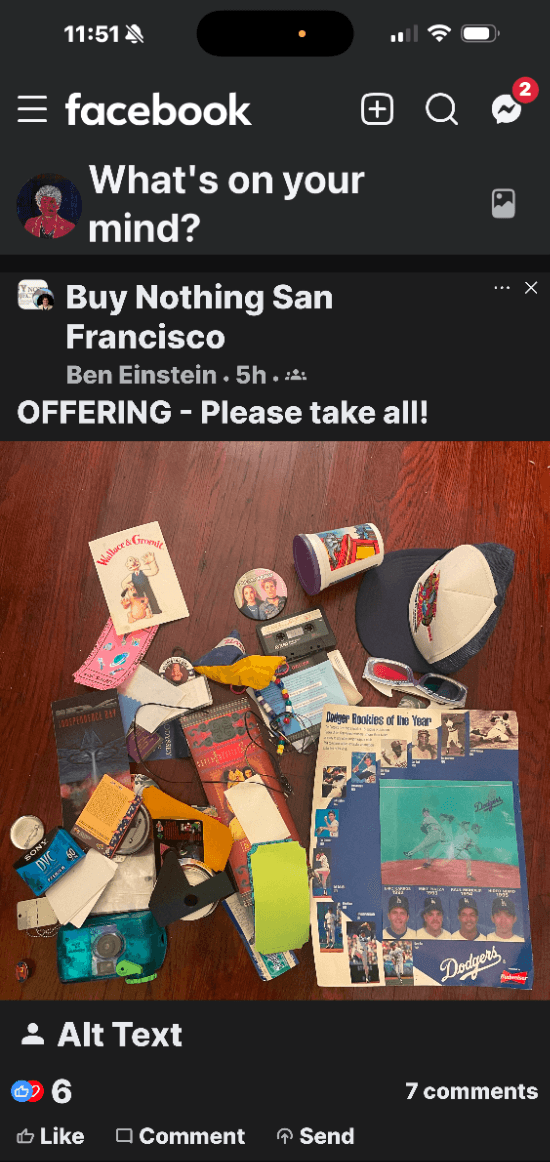
Like our first prototype, this one also is an A/B test - though we're testing different things this time. The two tasks that the users were asked to accomplish, though nearly identical, presented both a way to compare how alt text was displayed and a springboard for a conversation around AI vs. Human generated content.

A) Alt Text overlayed on top of the image

When the user clicks the "Alt text button" on the left, they see the text displayed over the image (as shown on the right).


B) Alt Text displayed below the Alt Text button, beneath the image

Do you notice the difference between the way Alt Text is displayed?

This group displays the text below the "Alt Text / Dismiss" button.

Which one would users prefer? Let's find out.

Usability Testing

Key Findings:


Most participants preferred alt text displayed below the image over it being superimposed atop it (Option B).


Ultimately, our usability test validated the addition of an Alt Text Visual Display button. Naturally, it's not a one-size fits all silver bullet. An Accessibility feature can provide different options for different people at different times.


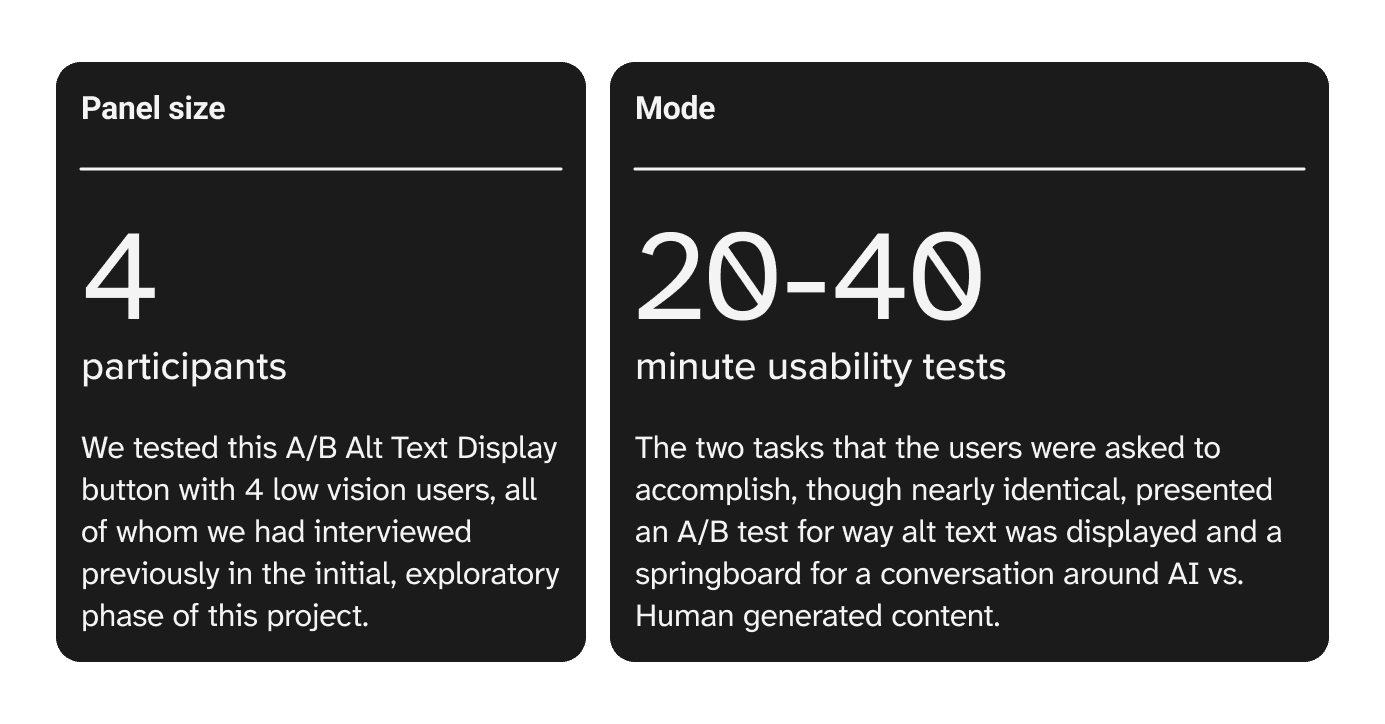
3 out of 4 users believe they would find a use for it from time to time. The third user, while having low vision, uses a screenreader almost exclusively when using technology - which would sidestep the utility of this tool.


Positive Feedback


Alt text button is useful: All participants found the alt text button valuable, especially on platforms like Facebook and Instagram where image content is often unclear for low-vision users. The concept itself was validating for this group and seen as potentially beneficial for a broader audience.


• AI or Human-written text: All participants felt that labelling alt text as AI-generated or human-written was appreciated. It increases user trust and helps users judge the reliability and tone of a description.


Iterative Feedback


• Overlays vs. below-image: Below-image display lets users bounce between the image and description, comparing them easily, whereas overlays can obscure details or require dismissing before viewing the photo again. Most users preferred it for this reason.


Other Takeaways


  • Assistive tech limitations: Though this test was meant to be visual (designed for low vision users who wouldn’t necessarily turn to a screen reader for this task), we learned that Figma lacks accessibility for creating mobile prototypes.


  • During user interviews, we learned that low vision users turn use different accessibility tools on different devices, sometimes toggling a screenreader on and off for a specific task.


  • The Figma prototype was not screen reader-compatible on mobile, which limits realistic testing. Prototypes for future accessibility should be platform-appropriate - which might mean using a more accessibility-friendly prototyping tool (like Framer, which plays nicely with a screenreader on both mobile and desktop)


  • Avoid all-caps in displayed text and prioritize natural reading flow and familiar fonts. Currently, Facebook's AI Alt Text tagger (as shown verbatim in our second prototype) tries to match whatever case it sees in an image at the expense of readability, as it makes makes reading full sentences awkward.


  • Inconsistent Platform Accessibility: When discussing Bluesky’s implementation of a similar Alt text feature, one user found it ironic that the platform added this low vision accessibility feature but the user still found screenreader accessibility still lacking and somewhat awkward.

Iterations and Next Steps

Having settled on a layout for Alt Text display button and its physical relationship to the image it is associated with, we revised our prototype to reflect those changes.

Our final iteration displayed both images using the same approach (alt text displays below the image, not on top of it), as dictated by user testing.


Here is our final high fidelity prototype (Click to Open)


Looking ahead, we have several nice-to-have features if we were to implement the button in on social media platforms in earnest. These include:

  • An activation switch in the app Accessibility settings menu, to turn the feature on and off.


  • Cross platform compatibility - including full iOS and Desktop functionality, responsive for all screens.


  • A posting screen that encourages users to write their own alt text when uploading an image, similar to the approach found in Bluesky


  • Additional layers of AI analysis built into AI-generated alt text display. This would allow the user to get more granular information about the image - allowing them to choose general or microscopic levels of detail, for example.


  • An implementation system for posts that display multiple images (or a carousel). Currently the tool is designed to showcase alt text for posts that display a single image.


  • Cross-meta support (including Instagram, Threads, and Whatsapp)


  • A version of the button that reads “No Alt Text” when no alt text (either AI-generated or user-written) is present.

Chrome Extension

We took a good deal of that feedback and pointed it toward the development of a Chrome Extension that allows the user to toggle the display of Alt Text on or off using a button.


We're calling it the ATV - Alt Text Viewer

Using Claude (10 or so revisions later), we were able to get it mostly working.


Ironically, with all our focus on building a tool with social media at the centerpiece, it's a little buggy on Facebook. But it handles more straightforward websites (like recipe blogs) nicely.


Want to give it a try yourself? Download it below and follow these steps (start where it says "Load Unpacked") to get it installed in your browser.

The ATV in action

Thanks for reading! I’m open to new opportunities and projects. Feel free to reach out.

ben.einstein@gmail.com

(323) 828-9901