Gamifying the experience of learning Braille


Platform: Mobile

Role:  UX/UI Designer, User Researcher, Art Direction, Composer

Project Type: Design, Research, Audio UX

Industry: Edtech, Accessibility, Gaming

Tools:  Figma, Descript, Zoom, Photoshop, Logic Pro X

Summary:
A playful typing game for the Braille keyboard

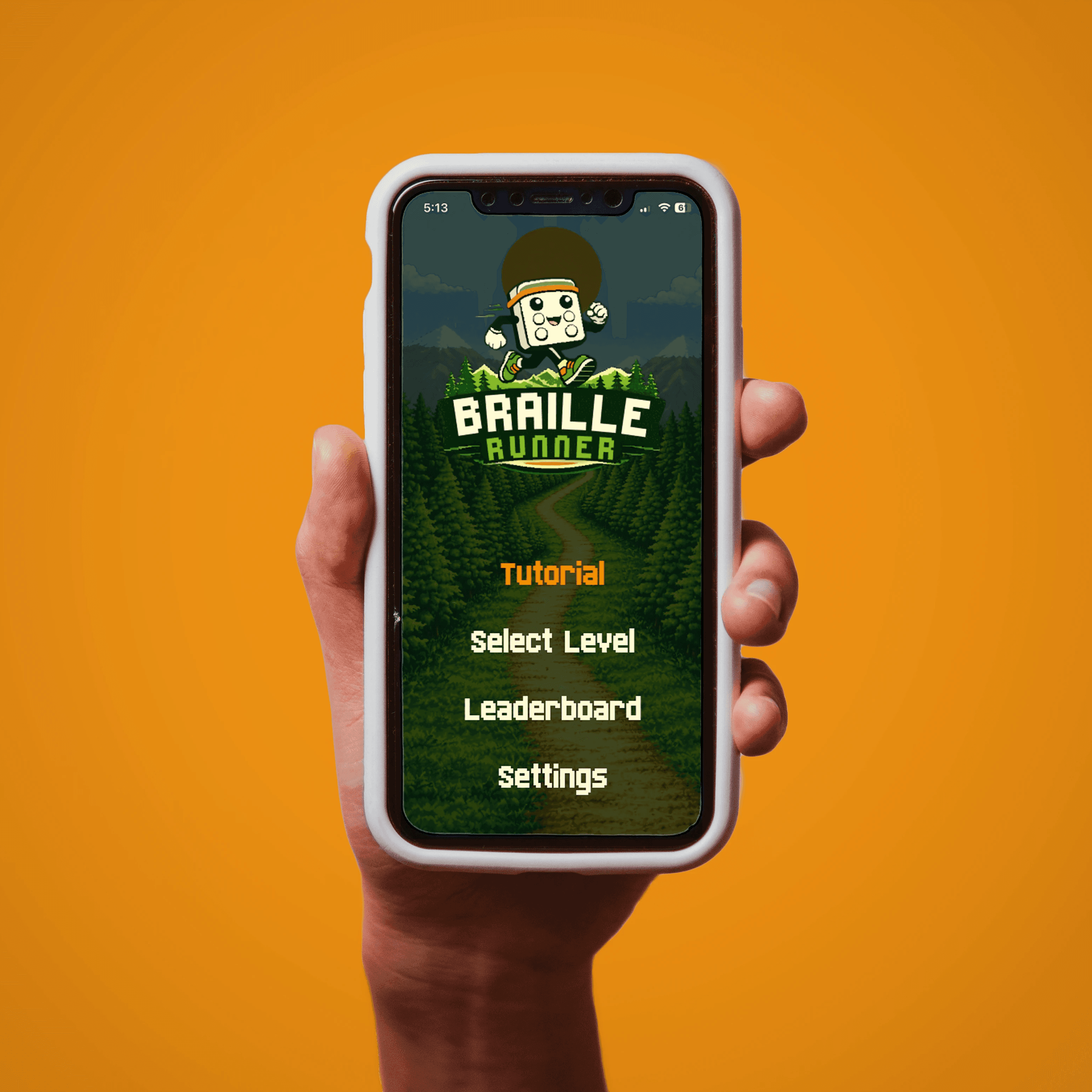
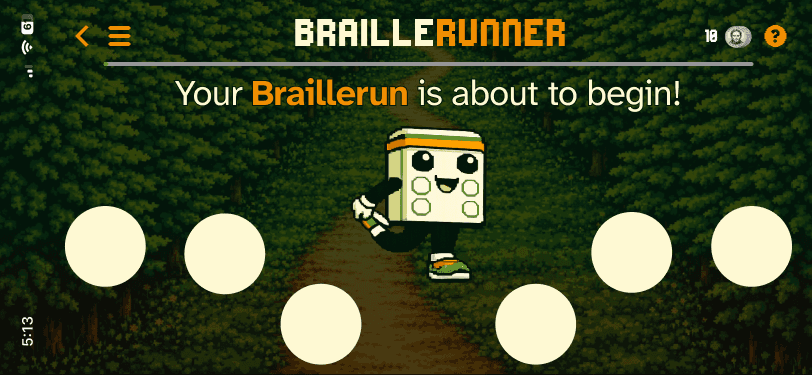
Braillerunner is a mobile game that teaches users how to type on a Braille keyboard or typewriter using Braille Screen Input (BSI). It is a fun, fast-paced game rooted in the aesthetics of 90s Sega Genesis / Game Boy styled visual experience, for many users recalling the experience of learning to type on a QWERTY keyboard. My background of 11 years at a blindness and low vision non-profit organization informs the development of this tool.

I designed an End-To-End experience - from explaining the history of Braille and the mechanics of Braille typing, to practice exercises that build muscle memory and test their newfound skills. The experience culminates in the “Braillerun” module, in which the user types full words in a fast-paced rapid-fire environment. Each individual lesson builds on the skills taught in the previous one, adding new letters, punctuation, and contractions to create a complete Unified English Braille learning experience.

We interviewed teachers (of both the visually impaired and sighted students) and multiple language learners to get their feedback on using apps to learn new things.

The target demographics for Braille Runner are:

  1. Sighted users who are already familiar with Braille but would like to refresh or sharpen their skills (like Teachers of the Visually Impaired or other Blindness / Low Vision professionals)

  2. Sighted siblings, parents, or friends of blind people who are brand new to Braille but interested in learning. Anybody can learn!

  3. People with progressive vision loss who may not need Braille right now, but would benefit from having learned it a few years down the road.

Your Braillerun is about to begin! Are you ready?

Background:

I’ve worked in the blindness / low vision non-profit world for over 10 years at the LightHouse for The Blind and Visually Impaired. Near the end of my tenure, I joined in the organization’s Media and Accessible Design Lab - the department that produces Braille and makes tactile maps and graphics.

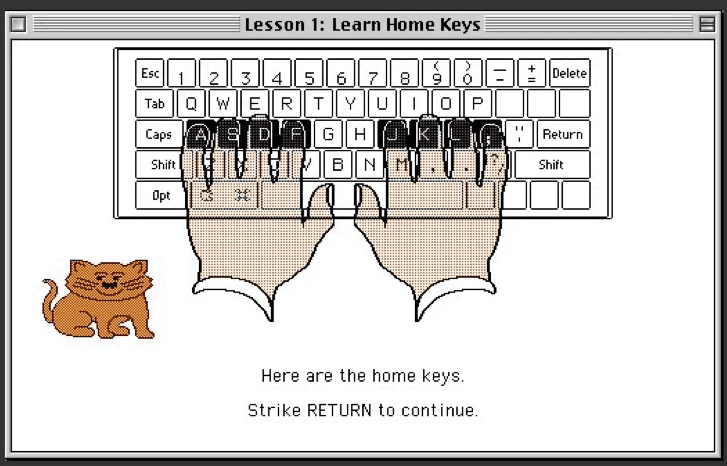
I learning how to read Braille visually and type using Braille keyboard input using the free resources at UEBonline.com. I got hooked - it brought me back to my elementary school days in the computer lab learning to type on a QWERTY Keyboard in the computer lab. Specifically, I loved Microtype and Mario Teaches typing. Gamifying this type of learning pushed my friends and I to improve our skills.
Monday.com shows that no question is too small to warrant its own dedicated, distraction-free screen.


Microtype (1992)

UEBonline (2025)

The Problem:

There is something of a void when it comes to education around Braille typing on iOS.

Several thoroughly gamified practice tools (like UEBonline and Accessibyte) are great and appear to be effective, but avoid using BSI (Braille Screen input) on iOS entirely. The ones that do teach typing on iOS rely on existing Voiceover and Braille skills - they don’t start you from scratch.

Accesibyte Braille Typing app. Looks great! But isn't a mobile-first experience.

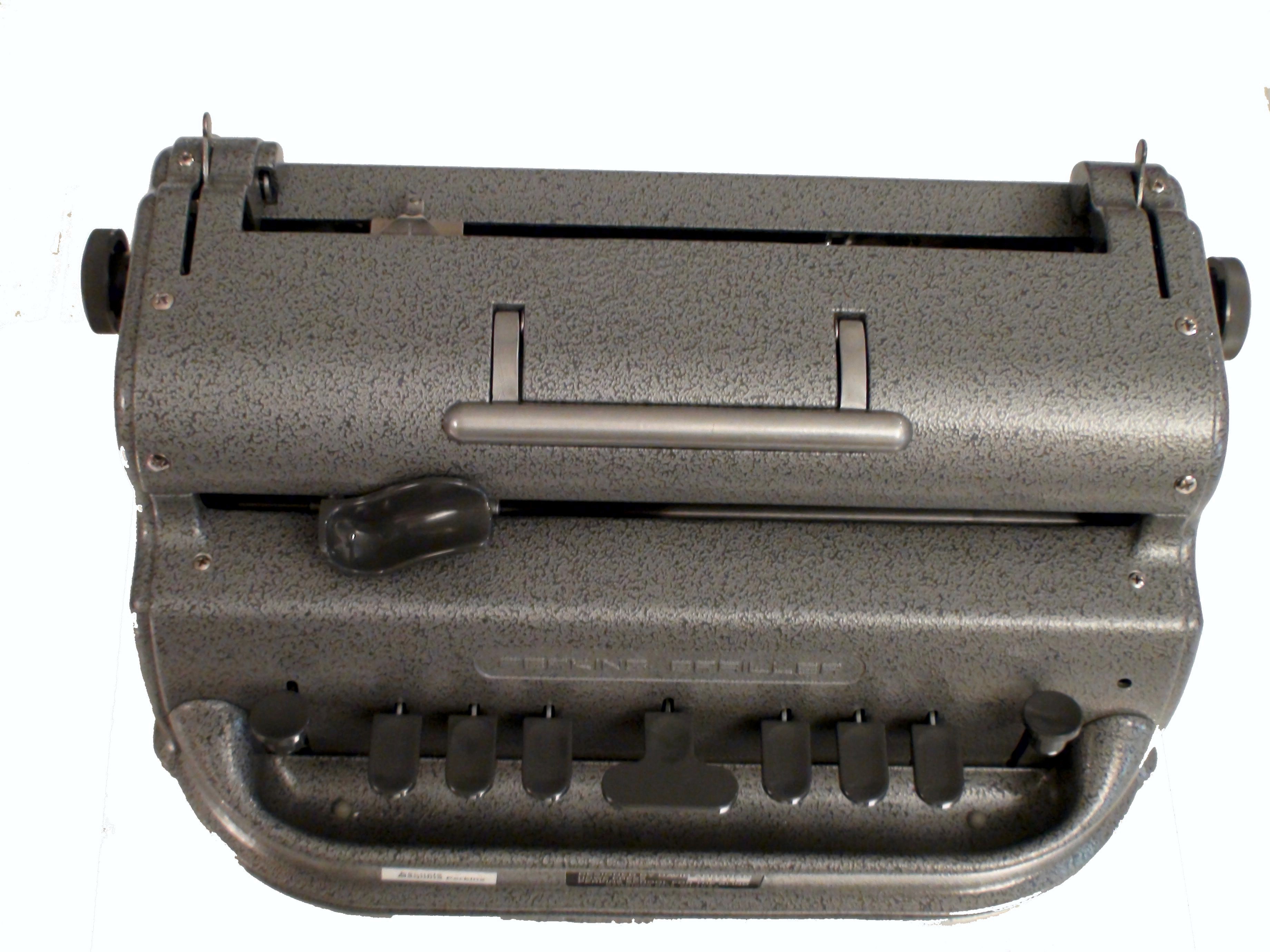
A Perkins Brailler typwriter. Notice the two groups of three buttons surrounding the middle button.

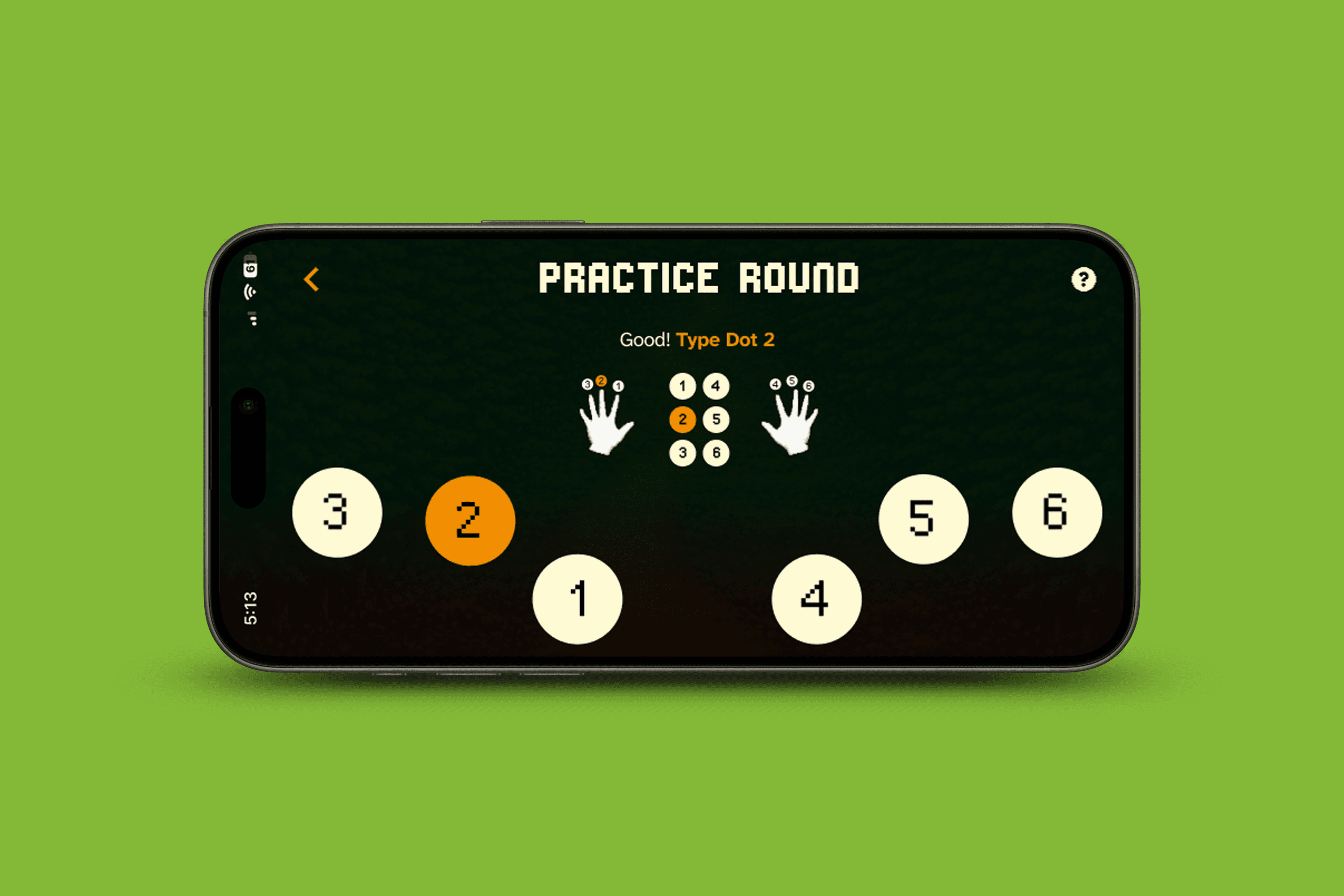
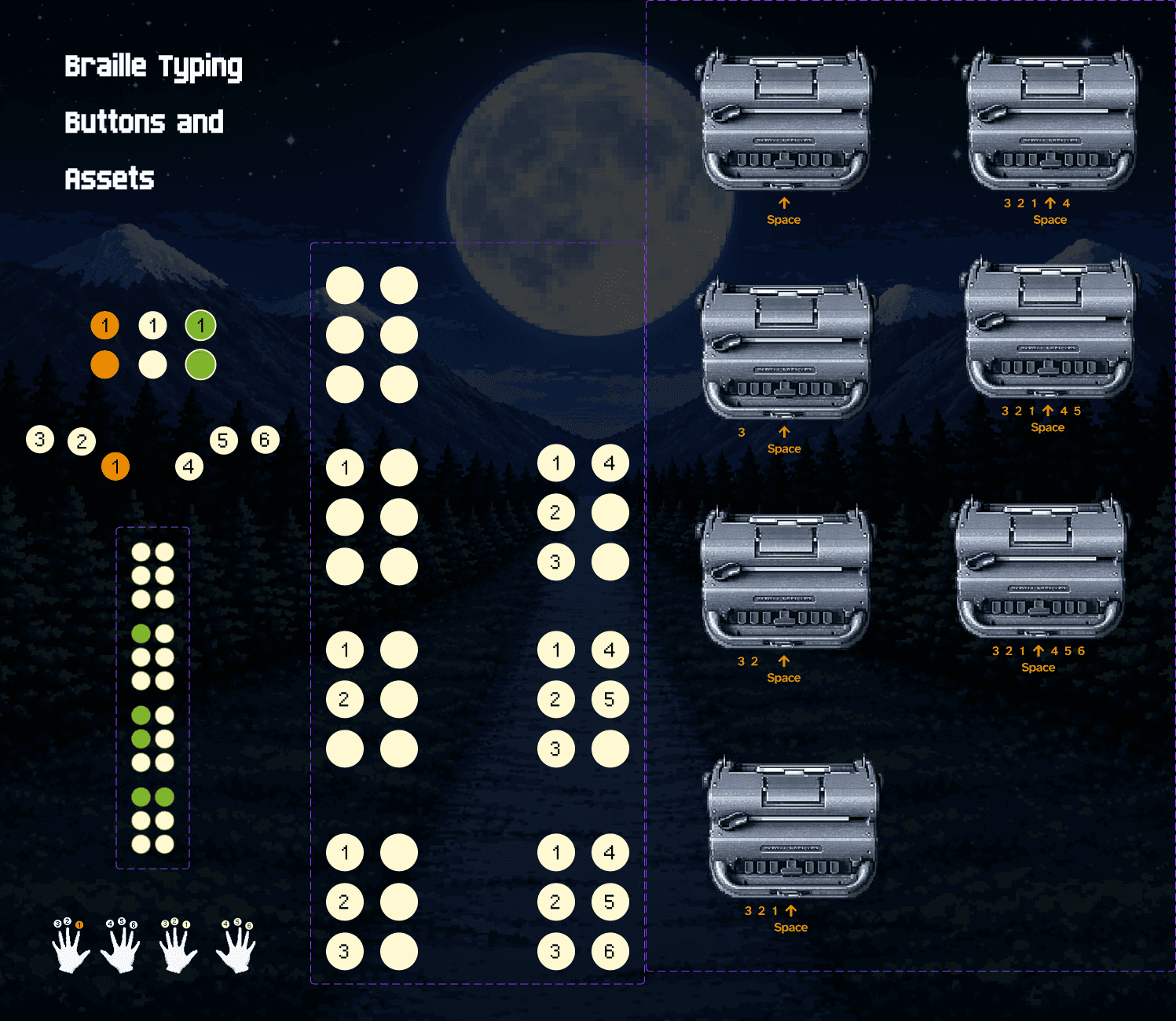
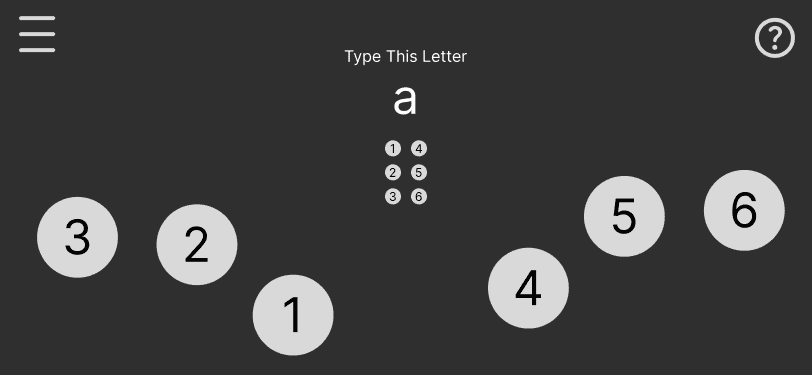
A Perkins Braille keyboard uses 6 different buttons that corresponds to the six dots in the braille cell. When you press more than one button at a time, it triggers all of those dots simultaneously.
Since there seemed to be a void in this market, we posited that a mobile-first prototype for teaching beginner Braille users how to take their very first steps learning Braille and learning how to use a Braille keyboard. It would have audio and haptic feedback to help guide the user. I am also considering a musical element, wherein the user could learn to type the letters A-G and it would play back their respective pitches on the speakers, adding a musical keyboard / synthesizer element to the game.

This is what Braille Screen Input looks like on iOS
Challenges

Two immediate challenges jump out at me. One is related to the audience of this game.

Who would this game be designed for? Blind people? Sighted people who want to learn Braille? Parents? Teachers? Each of these demographics presents its own design challenges.

The other challenge relates to how we manage multi-touch input. How would actually build a working prototype? Figma and Framer don’t really support multi-touch input in the way we would need it. Note that we would need to trigger up to six simultaneous inputs at once. Should we design this project visually in Figma and code it using AI? What other options do we have?

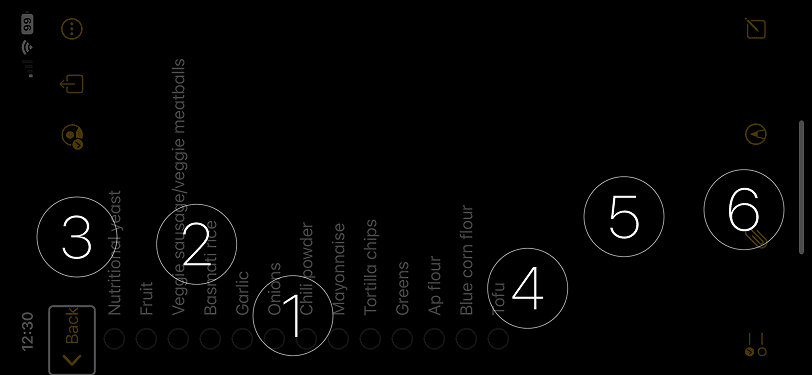
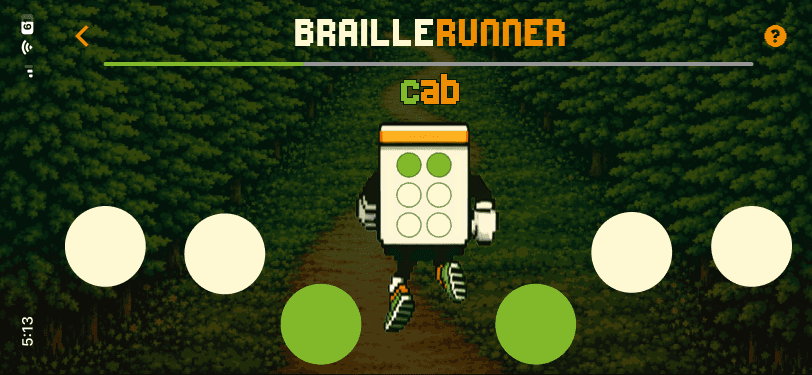
Horizontal proof of concept mockup we made to test distribution of both Braille typing buttons and other graphical elements.

Competitor Analysis:

User Interviews

Research Synthesis
(Including Affinity Map)

Key takeaways:


Braille isn’t as common among Teachers of the Visually Impaired as you might think.  

  • As a result, many TVI’s aren’t too sharp on their Braille skills and might appreciate tools that help them keep those skills up in an easy and fun way.

Many people have tried Duolingo, most don’t love it. 

  • People generally feel that Duolingo is a fun way to reacquaint themselves to a language and its vocabulary, but learning the serious nuances of grammar, syntax, and structure from scratch isn’t really achievable using Duolingo.

People generally liked the idea of a game to teach Braille

  • A few themes that popped up included tailoring the game to the student’s specific interests (like spelling their name or revolving around animals they like), and having a leaderboard / word per minute counter to increase competition among friends.

Building muscle memory along with learning a new thing can help increase fluency

  • Users described their experience learning to type on standard keyboards and then using that typing during school or leisure as helping reinforce the skill without them even really thinking about it.

Games can be a great way to make learning fun and engaging. 

  • Games can make subjects more accessible and enjoyable, even if you don’t have strong skills in that field already. Most people feel that they don’t have time for professional development (but they spend plenty of time on their phones), so a learning game that hooks you in and teaches you a new skill could be beneficial.

Some people were a little confused about the concept - how would you learn Braille without actually feeling it?

  • Most sighted people know what Braille is fundamentally, and some know a bit more detail about the mechanics. But several people didn’t understand how typing on a flat screen would help them learn Braille, so some education (and expectation setting) is necessary there.

Personas: Gabriel and Magdalena

Problem Statements

Problem Statement - Persona 1
Magdalena (Teacher of the Visually Impaired)

Magdalena learned to read and type Braille in school but that was over 15 years ago. Many of her students have low vision, or multiple disabilities. She is assigned a Braille-reading student every few years, and then needs to re-sharpen her Braille skills to meet that student’s needs. Her life is very busy - juggling a large caseload with multiple students in different schools in her district. She travels constantly, and has two kids at home who demand her attention when she gets off work.


How might we help Magdalena keep her Braille skills sharp in a way that doesn’t feel exhausting or overwhelming?

Problem Statement - Persona 2
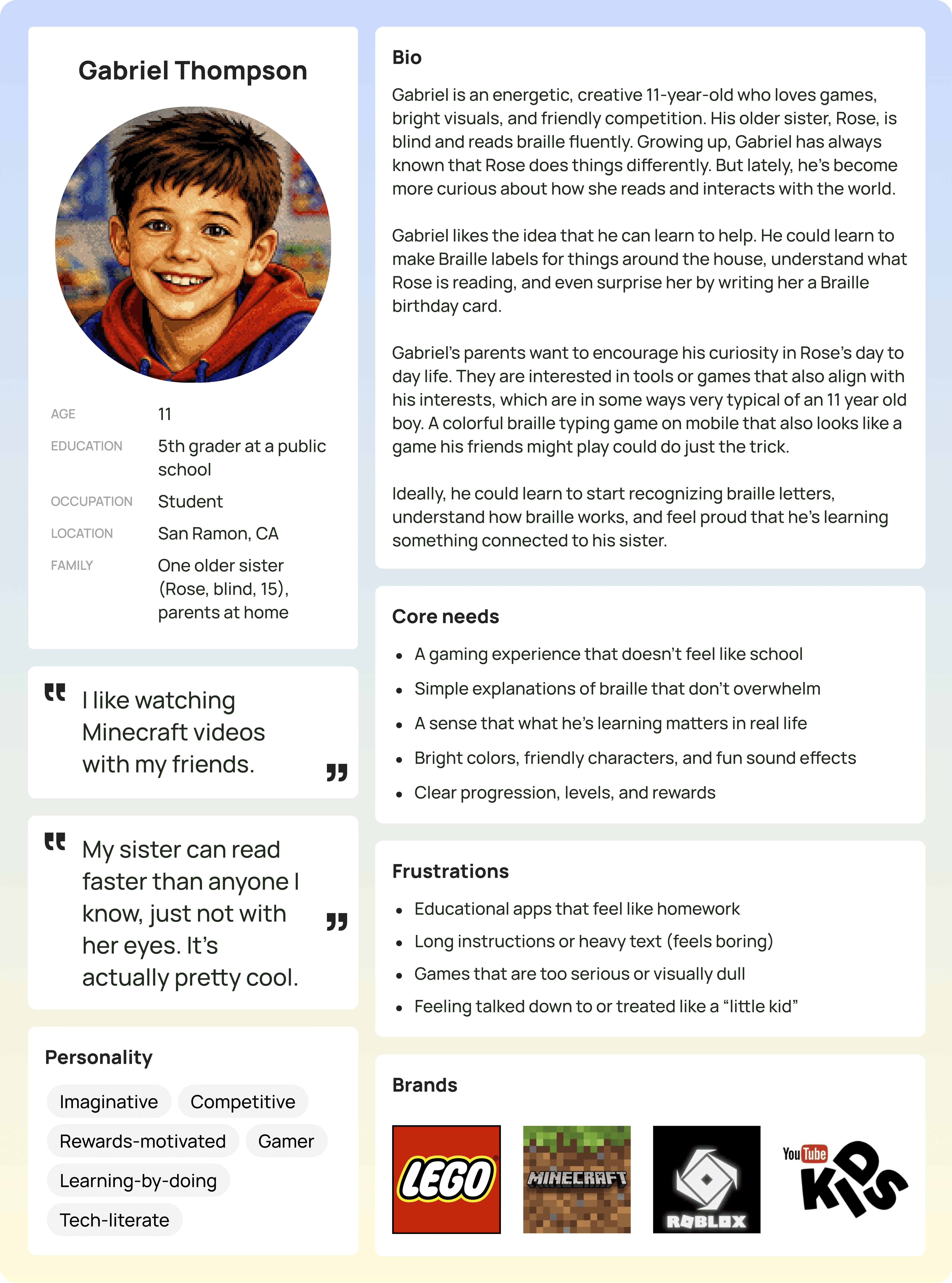
Gabriel (11 year old boy, his older sister is blind)

Gabriel’s older sister is blind, and he is reaching an age where he is starting to be actively curious about the world around him. His parents want him to get to know how his sister navigates her life and learns new things, so that the two of them can share a closer bond. He watches video on YouTube Kids, plays Minecraft with his friends, and is developing an interest in old school / retro video games.


How might we help Gabriel learn more about his sister’s life in a way that plays into his existing interests?

Problem Statement - Both Personae
Or anyone in general who might be interested in Braille

Generally speaking, people know about Braille and have a vague idea of how it works. But by and large, sighted people don’t know the Braille alphabet or how the dots in a Braille cell are constructed, and how words or numbers are written. Some sighted people work tangentially with Braille spaces - like architects and facilities managers who need to install ADA accessible signage in their buildings. But because they were never taught this in school, they are left figuring it out on their own.


How might we help ANYBODY learn more about Braille in a way that doesn’t feel like school or a burden on their time?

Prioritization

The world of Edtech lies at the intersection of this Venn diagram. Could we develop a learning platform that could be sold to schools or institutions that provides real values to its users? Ensuring a functional (multi-touch input for actual Braille typing) and accessible (for both screenreader and low vision users) is essential once the proof-of-concept has been solidified.

Feature Roadmap

The scope of this project needs to be appropriately narrow so that its mechanics can be built and tested. Audio or haptic feedback would be a nice to have, as they can help immerse the user in the world and provide accessibility feedback too.

Branding pt. 1
Mood board

This was a very fun portion of the project, as we managed to get an old Macintosh 8 emulator running. Compare modern UI flows to old school games like Microtype, Oregon Trail, and Super Munchers was a real treat.

Sitemap, User, and Task Flows

Blueprints for Braille learning

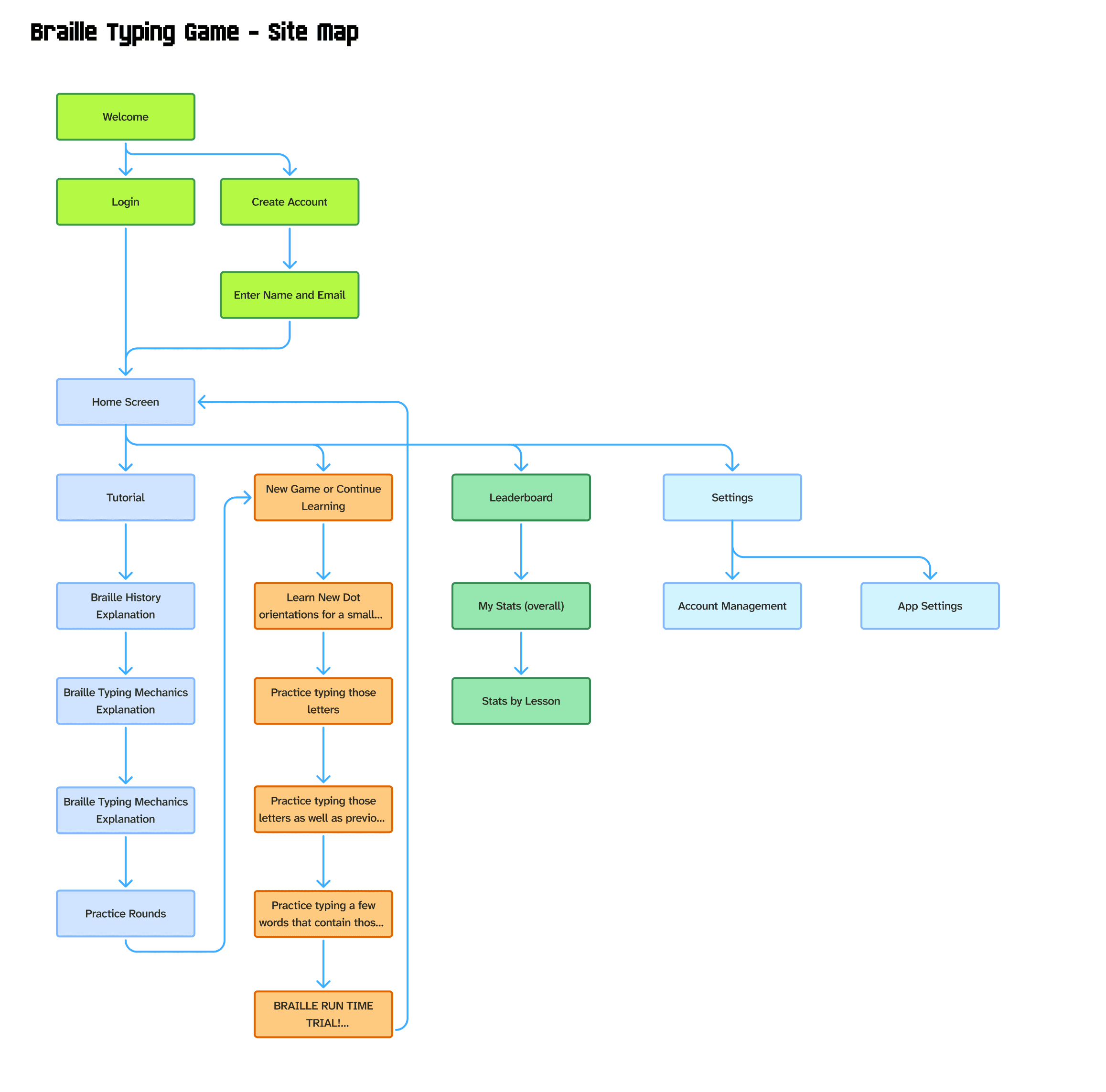
Our sitemap functions as a top level overview of the menu structure; we got into the nitty gritty details in the user and task flows (below)
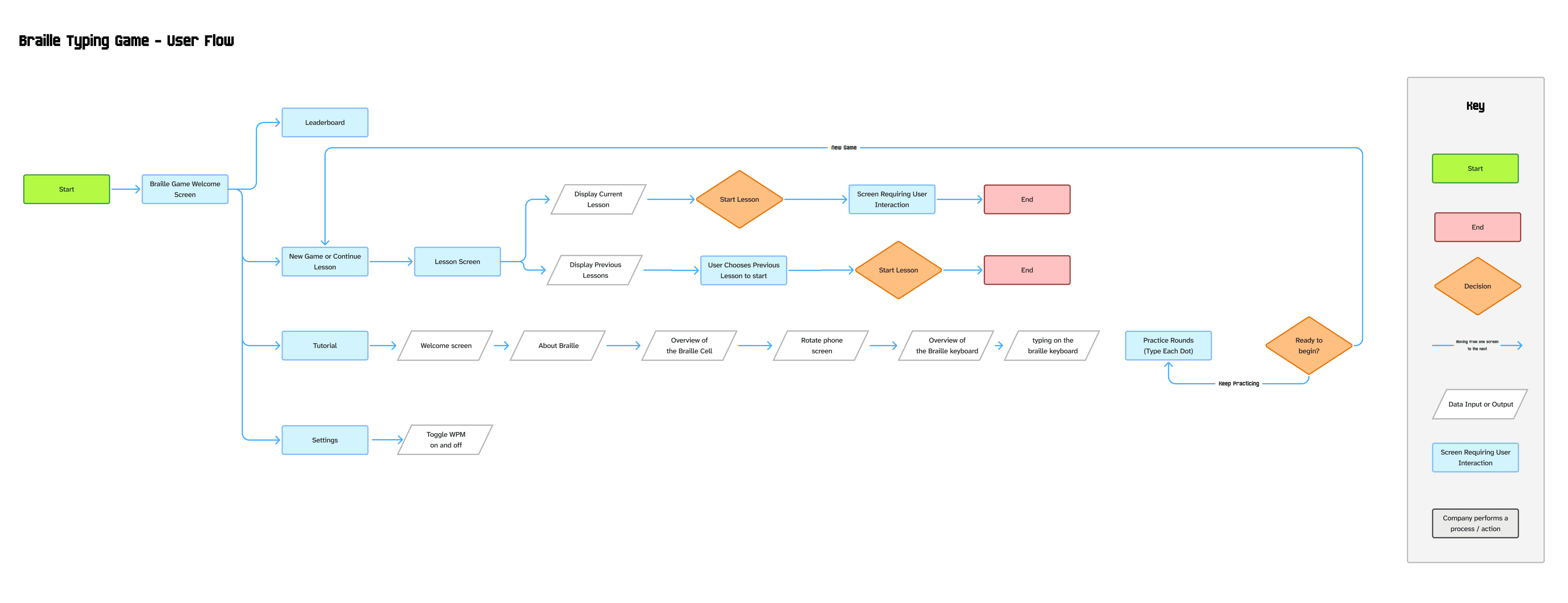
Our user flow takes that sitemap and shows in more detail how each screen will move into the next.
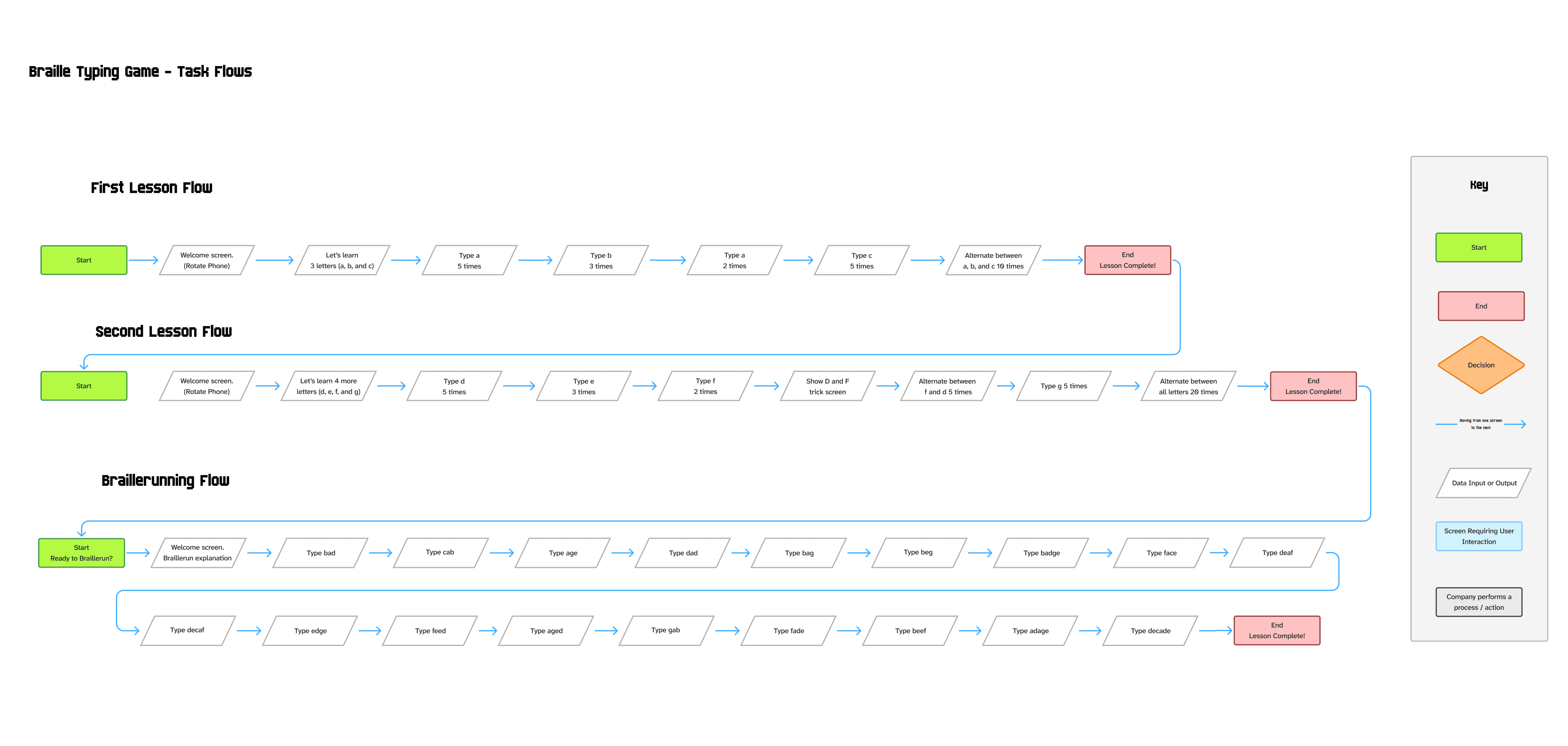
Our task flow is threefold. The end of one feeds directly into another, and showcases a full lesson from start to finish.

Branding pt. 2
Logo Design

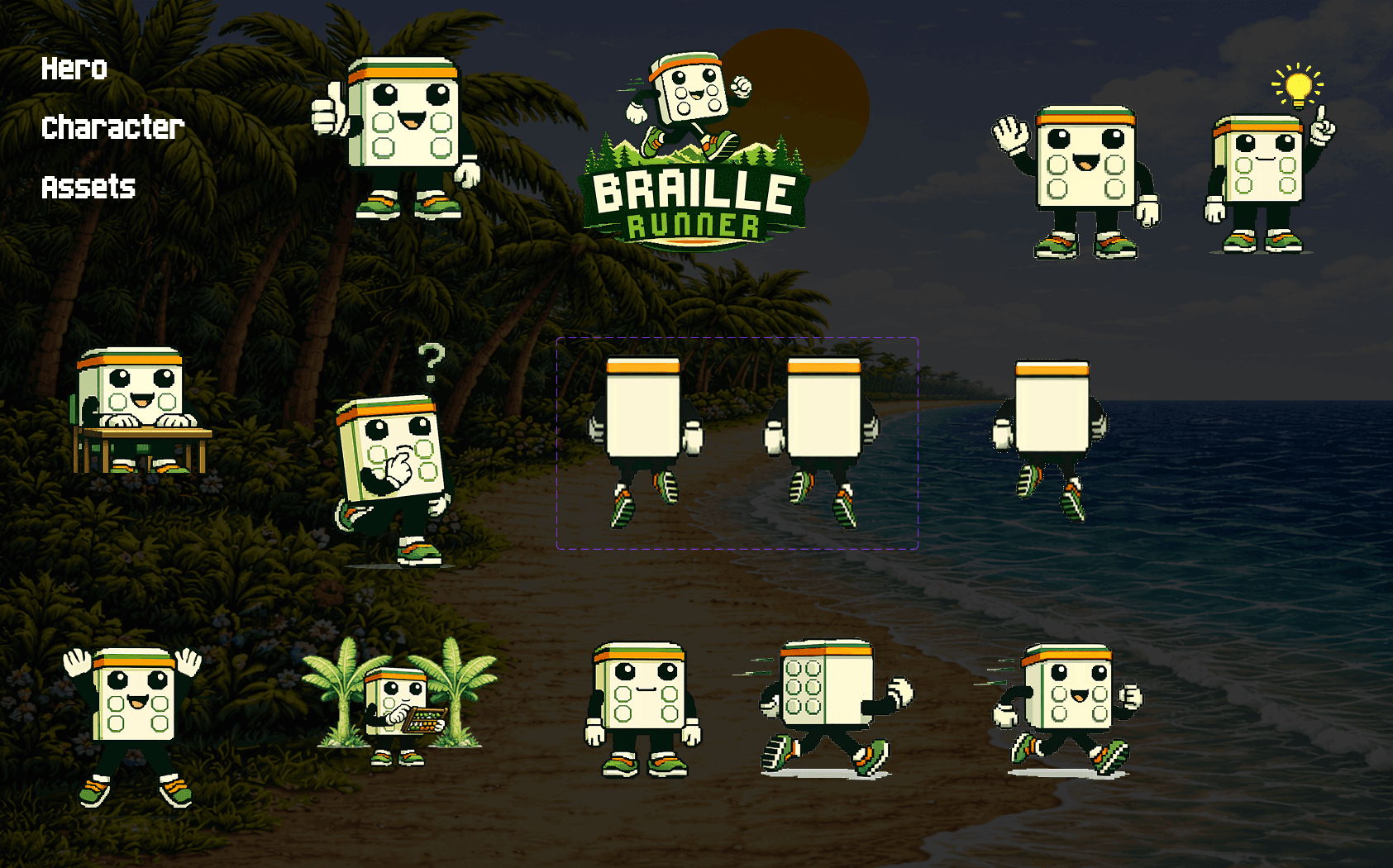
We decided early on that our hero character would be a living, moving Braille cell. We played with phrases like "Dot Quest" or Dot Wizard" before leaning towards Braille puns.

  • Brailleyard (Railyard) - Trains?

  • Braille Runner - Trail Runner

  • Braillebird (Jailbird) - Convicts? Birds?

  • Braillepolish (Nailpolish) - Nail Salon?

  • Light Braille (Light Rail) - Also trains?

  • Braillestorm (Hailstorm) - sounds cool. What does it mean?

And the winner is…..

We settled on Braillerunner for a few reasons:

The play on "trail running" was just irresistible, and it reminded us of Temple Run and the fast-paced mobile games of the early 2010s.


The 90s retro nostalgia aesthetic also caters to both our target personas. Namely:


A) Current teachers of the visually impaired like Magdalena in their mid-30s to 40s who learned to type in the 90s on blocky, pixelated programs.


and


B) Modern elementary school kids themselves, whose popular media also includes a modern low-res resurgence (found in games like Undertale and Minecraft).

Low/Mid Fidelity Prototyping

Click the image to view a pdf of the 16-step flow

We built a 16-screen mid fidelity flow to test the Braillerunner tutorial experience with a small focus group.

This was designed to see if significant UI edits would be needed before completing the design of the first full lesson flow.

Findings

  • Body text font is a bit hard to read. Currently using Helvetipixel, which has no additional weights. Consider making it larger or changing it.

  • Users were happy with the title font Born2bSporty.

  • Users felt that certain screens had too much text on them at once. Consider shortening text, breaking text up into multiple screens.

  • Consider moving the screen rotation location later - only require it when the user is actually going to start typing.

  • Users felt that changing the color to emphasize certain words wasn’t enough - you should also change the weight slightly too.

Next Steps

  • Redesign the “Braille Keyboard” Screen so that it is vertical. Move “rotate screen” page one step later in the flow. For future flows, use vertical orientation whenever possible - only use landscape orientation for typing exercises themselves.

  • When there is more than 1 block of text on the screen, consider breaking it up.

  • Consider alternate body font.

The Most Significant Takeaway?

We needed a new body font. We had leaned too hard in the 8-bit direction, and readability had suffered as a result. Especially for a product in the accessibility sphere, we needed an unfussy, easy to read body font. After a morning's worth of soul searching, we settled on:

This is a font we used regularly at my old job at the LightHouse for the Blind's Media and Accessible Design Department. It’s very easy to read and was designed specifically with low vision users in mind. It was designed in partnership with the Braille Institute in Southern California.


It also will feel balanced aesthetically within the app, I believe. It has many weights and is easy to work with. I spent hours trying different fonts, and it turns out the answer was right in front of me the whole time.

High Fidelity Prototyping

With valuable feedback from initial testing, we could now begin designing our High Fidelity Prototype.

A few scenes from the high fidelity prototype.

The full flow, all 130 frames of it.

Our high fidelity prototype contained three discrete flows, which would be tested one after the other in succession.

They would feed directly into each other, and all three together would encapsulate a full Braillerunner lesson.


  1. The Tutorial would get the user up and running, teaching them Braille history and acclimating them to the mechanics of Braille typing on the phone screen.

  2. Lesson 1 would teach the user how to type three letters - A, B, and C - on the Braille keyboard. They would learn to visually identify those letters by their position in the Braille cell, and then practice typing them on the Braille keyboard using 6-dot input.

  3. The Braillerun would be a competitive, fast-paced exercise where the user then types full words using the letters they just learned.


UI Kit

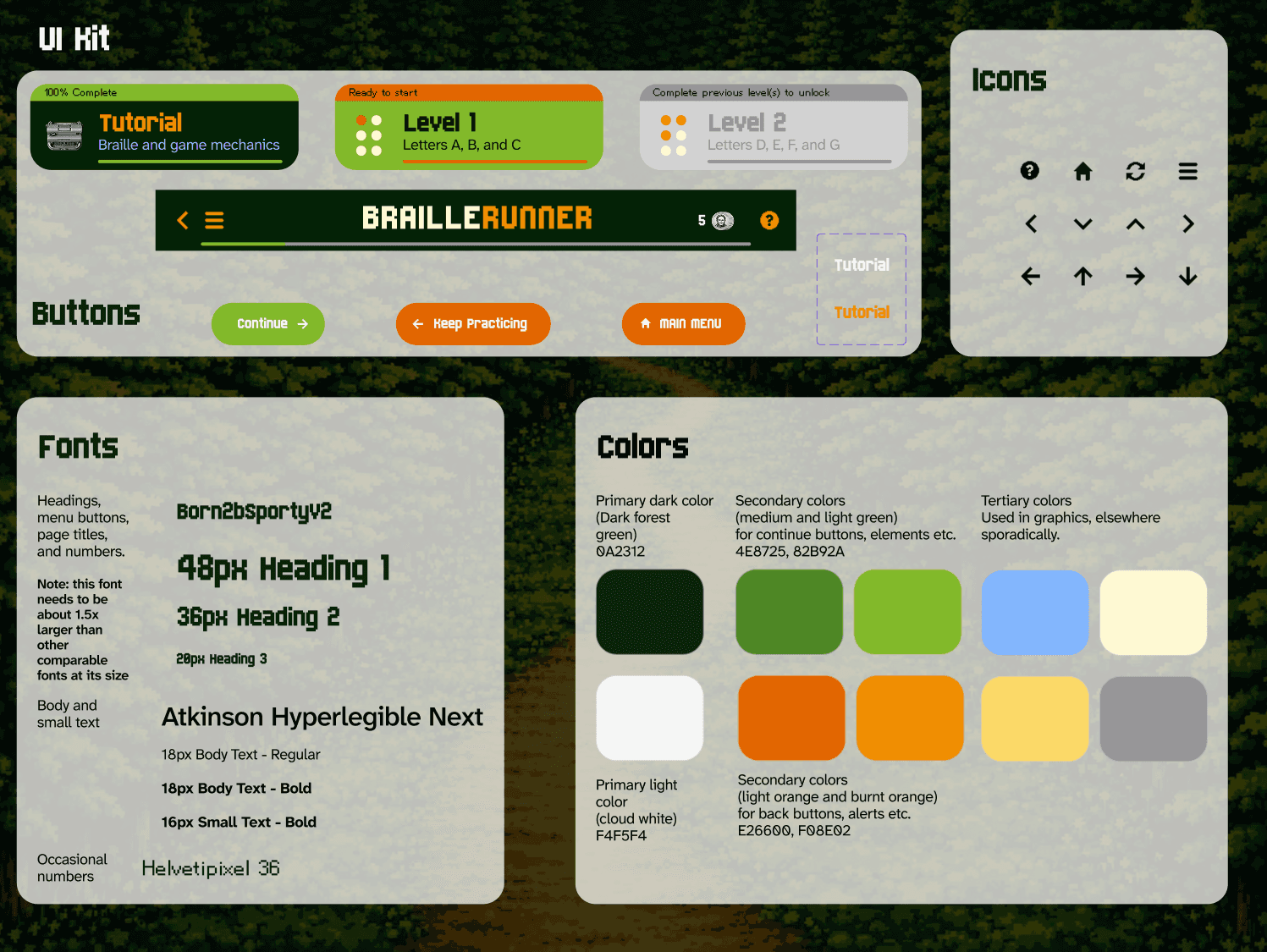
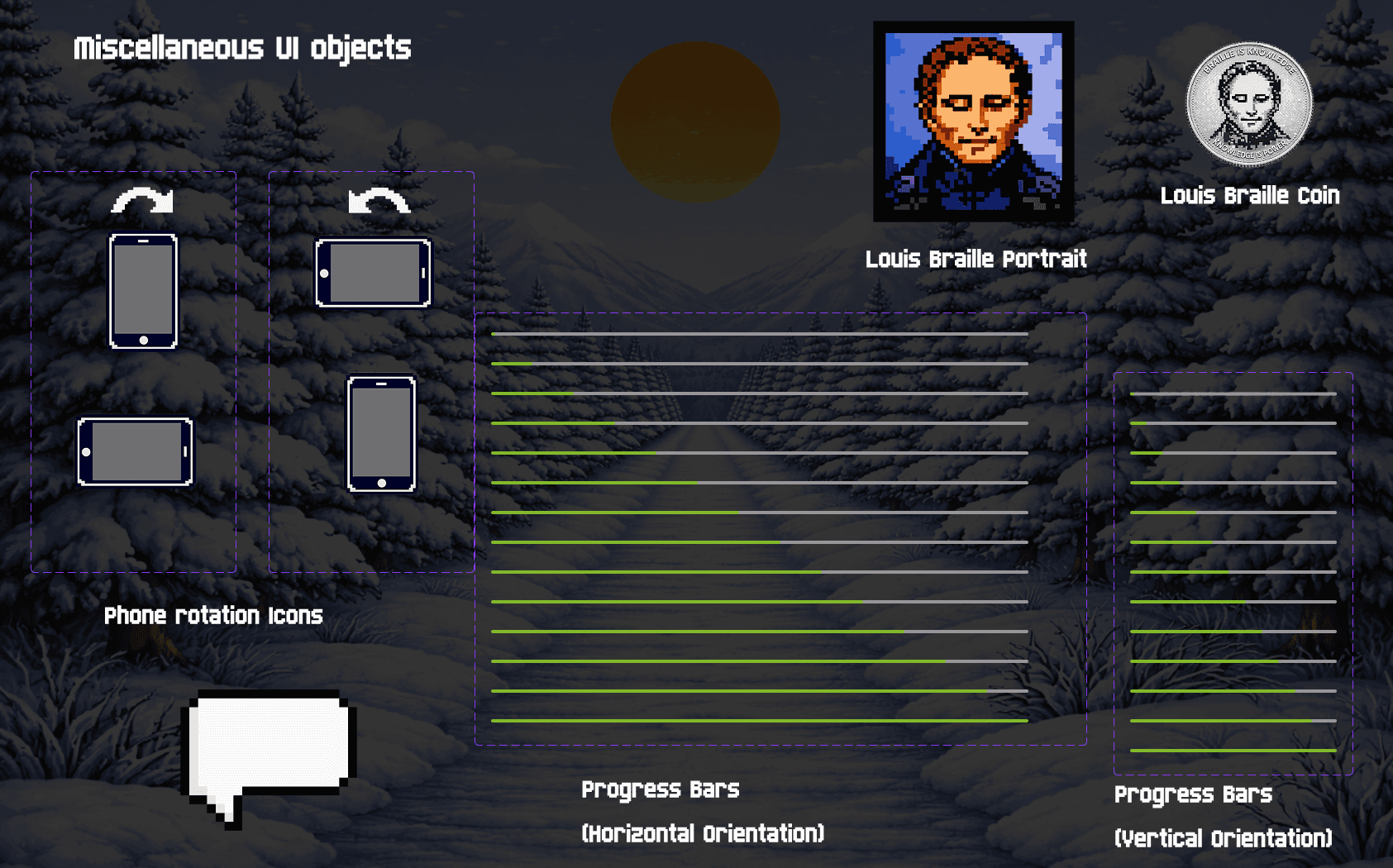
Our final UI kit has a fair amount in common with our style guide, but with all buttons and graphics accounted for. It includes our revised fonts, colors, additional icons and components, and our full library of hero character assets and additional graphics.

Audio Kit

We also composed original music and created our own sound effects for Braillerunner in a video game / chiptune style. You can explore those sounds below.

Braillerunner Theme Song

0:00/1:34

Success Sound

0:00/1:34

"Uh oh!" Sound

0:00/1:34

Usability Testing

Results:

Positive Impressions:

Visual Design & Aesthetic

All five users responded positively to the visual design. One praised the nostalgic vibes, noting it “looked like a modern phone game, but with old-school nostalgia.” Another described Chase as looking “like a Lego block,” which she found appealing. The 90s arcade aesthetic successfully resonated with the intended experience.


Intuitiveness & Usability


Four out of five users found the app intuitive. A user stated it was “totally usable, was intuitive to me.” Another described the core concept as “a really cool idea” and noted he was “having fun doing it.” The tutorial flow and game mechanics were generally clear without extensive explanation.


Broader Applications & Use Cases

Multiple testers identified valuable use cases beyond the original scope. Two users both suggested the app could serve people with progressive visual impairment who want to learn Braille while they still have vision. Another emphasized the app’s potential to engage sighted family members (parents, siblings, grandparents) and teachers in learning Braille, comparing it to the appeal of learning sign language.

Areas for Improvement:

Typing Feedback & Validation (Mentioned by 2 users)


Two users mentioned that instant feedback when typing was too quick or unclear. One noted, “maybe there’s some way to deliver feedback that makes correct answers that more obvious.”

Another also noted that the response time between typing letters could be shortened. He felt that, at that stage, he understood what he needed to do and was ready to type quickly.


Button Tactility & Visual Feedback

One suggested adding more tactile feedback to buttons: “when you click on 'tutorial,' it should change color or something” to provide clearer interaction confirmation. This could improve the sense of responsiveness throughout the interface.


Competitiveness & Rewards

One user strongly advocated for leaderboard and competitive play features, suggesting multiple competition types: time trials, furthest level reached, words per minute, and streak tracking (similar to Duolingo). She emphasized these features would “keep people engaged” and create motivation for repeat usage.

Another expressed interest in a rewards system (“little doodly dudes”) that would periodically award the user with coins, tokens, or pips of some kind. This would trigger an endorphin response, exciting the user and validating their efforts.

Summary & Recommendations for Iteration

Enhance typing feedback clarity with more obvious visual indicators.

This is particularly necessary during the “success state” of typing actions, as users had a hard time confirming that what they had typed was correct. Add button press states (color change or animation) for improved tactility. This could be applied across the board - on both the home screen and within the typing experience - particularly during the tutorial.


Add / coin / pip reward system after each section

Implement a reward system so the user feels more appropriately rewarded for following prompts successfully.


Switch to a prototyping tool that supports multi-touch support.

This is a substantive change and will require a great deal of research and effort. After all other changes are made (and before developing additional modules), we should explore options other than Figma for the next iteration. Particularly for letters D and beyond (which contain three button presses at once), our prototyping tool needs to support this in order to create an authentic Braille keyboard experience.

Alternatively, we can explore single button support (so the user triggers multiple letters with successive instead of concurrent button presses), but it is unlikely that approach will yield a result that is tactually similar to a true Braille typing experience.


Some minor copy editing

Iterations:

26 Screens added. Most are interaction-oriented to give the user a clearer picture of how their button presses impact the experience.. We also added are coin/reward screens (after each lesson), and a checkered flag style countdown before the Braillerunner Race begins.


Original

Iterated

Note the new hamburger menu (top left), new coin counter system (top right), and additional stroke around pressed buttons which makes them easier to see.

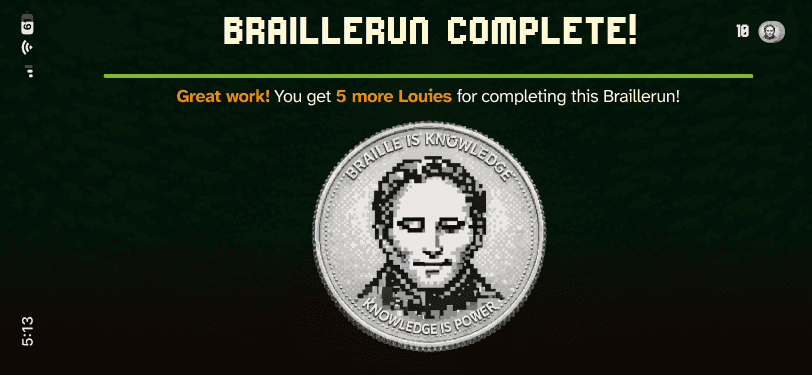
Added a Coin / Token Reward System

Each coin is called a Louie (named after Louis Braille).

Added a Coin / Token Reward System

Each coin is called a Louie (named after Louis Braille).

Full list of iterations described below

Final Prototype

We landed on a 6 screen account creation and a 12-14 project creation process. The number of screens is variable depending on whether the client was migrating from one data source to another.


You can explore the final prototype by clicking here.

Next Steps

Now that the concept has been proofed-of, we will sort out the multi-touch input problem before developing additional modules. We're also looking for collaborators, game designers, visual artists, to take Braillerunner to the next level!

Thanks for reading! I’m open to new opportunities and projects. Feel free to reach out.

ben.einstein@gmail.com

(323) 828-9901