Redesign of the Onboarding / First Time User Experience for an AI startup

Platform: Desktop

Platform: Desktop

Role:  UX Writer, Researcher, and UI Redesigner

Project Type: Data Analysis, Research, Redesign, Logo Animation

Industry: Implementation Consultancy, AI, Project Management, Data Migration

Tools: Figma, Posthog, Zoom, Claude, Final Cut X

Summary:
An onboarding experience, improved

We designed a revised version of the onboarding flow for Glossa, is an AI-powered requirements generation tool for implementation consultants. Glossa was created by several ex-Salesforce employees and a small team of developers who saw the potential for AI in this market.

When discussing UX/UI needs with the cofounders, we thought perhaps a new look at the onboarding process was in order. Walking through the onboarding experience myself as a new user, I was left with a host of questions - what does this button mean? Why is this here? During our initial interviews with potential users, these concerns were validated as well. A straightforward onboarding experience sets an app up for success, orienting a new user so they know exactly where to go and how to achieve the most out of a new tool.

Background:

AI tools are a dime a dozen these days, but Glossa differentiates itself as a tool for implementation consultants to easily generate requirements from zoom meetings, documents, emails, videos, and more. Glossa centralizes all of this information, allowing both the client and the consultant to upload data. It can track task progress, reduce redundancy and manual data entry, and crucially - integrate with Google, Outlook, Onedrive, Zoom, and Teams. Pretty nifty!


The Problem:

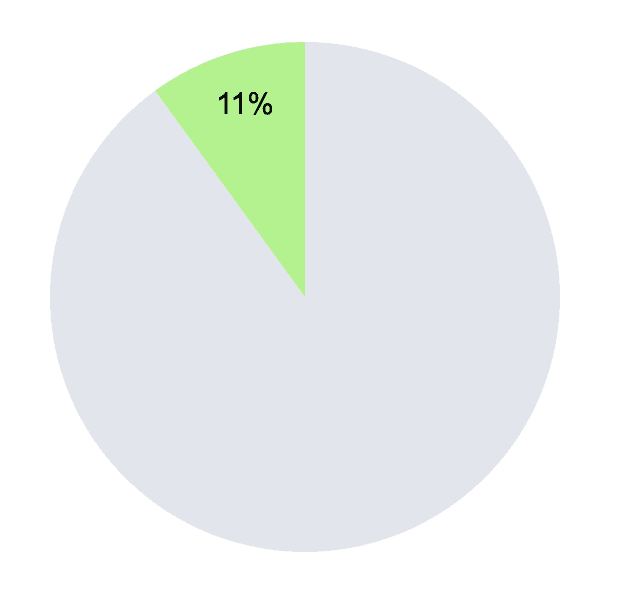
Only 12% of users completed the full project creation flow

(2 out of 17 users within the 1-month period leading up to our UX research.)

Glossa’s onboarding / first time user experience needs some work. Glossa isn’t seeing high rates of new users completing the creation of their first project and actually using the tool. Glossa wants users to quickly and confidently use their service, and knows there are UI slowing down that journey.

Now, I won’t pretend I walked into this project understanding what the company does on a deep level. I had some experience with data migration at a previous job (and knew how much of a pain it could be), but I didn’t understand exactly who specifically would use Glossa and how they would benefit from using it. But I will say this:


Although I was new to the industry and its nuances, this proved to be an advantage rather than a limitation. Approaching the project with fresh eyes allowed me to design an onboarding experience that felt intuitive from the start.


If the onboarding experience made sense to me, a new user, it would certainly be clear and effective to experienced professionals too.


Comparative Analysis:

Exploring the Best of the Best in Onboarding

Every digital tool brings its users onboard somehow, but how it handles that task affects the way the user feels about the tool. It correlates to how trustworthy the brand seems to them, how confidently they understand the tool or what to do next, and how likely they are to continue using the tool in the future.

We looked at 7 additional products (including Glossa’s existing onboarding flow) - mostly in the project management space - to find common and sensible onboarding patterns and explore the differences between them. We completed the onboarding experience for each tool, taking screenshots along the way and analyzing the experience.

Making a good first impression is *crucial*

We analyzed the onboarding flows of seven widely used apps to uncover what separates a good onboarding experience from a great one.

What we learned:

A few trends immediately jumped out.

Account Creation + First Project Creation make a great pair. Many project management tools group the creation of a user’s first project into the onboarding process itself. Glossa treats this as two discrete steps.

Jira Onboarding and Project creation Screen

Jira's onboarding flow includes project creation

One Screen, One Action. Mainstream project management tools often included one action per screen, creating a simple and deeply linear onboarding experience.

Monday.com shows that no question is too small to warrant its own dedicated, distraction-free screen.


A dashboard checklist can provide useful info for first time users. The project dashboard can include quickstart tips, checklists, and more.

Often a dashboard will display metrics, analytics for repeated users. But since this is a first-time experience and the the user hasn’t created anything to analyze yet, this space can be used to guide the them through the tool instead.

But after the user has completed onboarding, the opening screen needn’t be blank. You can use empty screen real estate valuably to guide the user through the tool. Glossa’s, conversely, contains very little info.

Notion’s dashboard gives you a nice checklist, teaching you how to use the tool and helps ensure that you take all the necessary steps to get started.

Conversely, Glossa’s dashboard is very sparse. It advises you to create your first project, but doesn’t teach you how to use the tool.

Help is on the way. Having a help button on every page can be very valuable - especially for first time users. A common pattern is to have a help button in the bottom right corner, and some tools also include an option to chat with AI.

Notice the help bottom in the bottom right of the screen (and check out the "Complete your Profile" checklist while you're over there.

Good tooltips can be a boon. Tooltips, when used deliberately, can guide the user through some of the disorienting visuals when learning a new app. Animation and color can catch the user’s eye. 

An example of good tooltips shown to first time users of Monday.com - with graphical elements and a progress bar,

describing the nuances of a tool that wouldn’t be immediately obvious to new users.

But tooltops should also not be used redundantly, especially to showcase the painfully obvious. This Linkedin post showcases how frustrated users may feel about unnecessary or half-baked tooltips.

In this example, the start button is obvious - bright yellow. I don't know about you, but I’m pretty sure that a user can infer that the word “start” means that’s where they begin their journey with the tool.

Options can be okay. When the user is given a few choices, they feel like they have agency over the experience. It’s okay to let them choose to skip ahead. Not every user is the same - some people prefer a guided tour, others just want to jump in.

Loom empowers users with an important choice. Do they want to perform an action immediately, receive summaries passively, or explore the app before doing either?

Working toward a solution:

Fundamentally, this analysis uncovered three discrete flows to explore for Glossa:

  1. Account Creation

  2. First Project Creation

  3. A Quickstart tutorial of some kind


The team and I talked through a few potential avenues to pursue. Though we knew we were going to lean on user interviews for our first actionable steps, we wanted to brainstorm a few ideas of possible avenues to pursue. One of those ideas was a first time user experience / quick start tutorial similar to those generated by Intro.JS. These tools would provide an overlay to the existing user experience walkthrough, acting like a tour guide through the dashboard and menus.

Would a product walkthrough like this make the first time user experience better? Yes, but…

But upon manually reviewing the onboarding flow with one of the cofounders, we realized that the experience itself needed work. The language was inconsistent between menus and buttons, and ultimately the user might end up confusedas to why and how the steps they were taking would be used to help them set up a project.

Buttons and menus like this one were confusing. The copy needed improvement.

What is a system? What is a service?

An analogy - you don’t want to hire a tour guide for a museum if you’re already looking to change the way the museum is laid out. You should start by redesigning the museum - you can worry about the tour guide later.

Then… A Discovery

An Unused Onboarding Flow buried in the company Figma file.


While exploring Glossa’s existing Figma file, we discovered an unused onboarding path that immediately had a few usability improvements that felt more intuitive. It was also old and needed updating, including pricing info that was no longer relevant.


Was this a buried treasure? Has our work already been done for us? Well… No.


"Buried Treasure" Figma Onboarding screen

Existing Onboarding Screen


There were some helpful workflows in this existing onboarding flow (and a bunch of unused assets!). But it became clear during user interviews that this unearthed flow only solved some of our problems. Glossa’s onboarding challenges were more heavily rooted in the project creation stage.

User Interviews

A few quotes that jumped out at us:


“Whenever there’s a UI issue, what does that imply about a deeper issue down below?”


“Tons of other software platforms have ‘example records.’ You can’t delete it, but it contains some example pieces of data.” Maybe there’s room for having a template [showing] ‘this is what great looks like’ when you use the system.”


On the Sources screen: “I think this page is confusing. I also think that the terminology… could be simplified.”

Research Synthesis
(Including Affinity Map)

Key takeaways:


  • “Source / Target” concerns validated. 3 out of 4 users noted confusion about the “source / target” screen (described earlier), which validated a hypothesis. All users encountered a bug at this screen, requiring them to input data multiple times; this screen itself could use some improvement.


  • The What and the Why - Overall, there could be more text guiding the user through the onboarding and project creation steps and explaining the purpose of each screen. 


  • Security: Can we trust our data in this tool? - This prevented one user from using Glossa entirely. Many users will need buy-in on a tool from an organizational level, and they can only have that if they are assured that their data won’t be retained or used to train other AI models. Inherently, Glossa follows these best practices - but doesn’t explain that clearly. There should be text that addresses this.  One competitor - Auctor - makes this very clear on their homepage.


  • Some small UI tweaks could make a big difference. These include:

    • Changing some terminology. “Integrations” could become “Connected Services” or “Connected Apps.”

    • Source / Target system (discussed above). Breaking that into two screens, with one action on each screen.

    • One-touch sign-on pre-populating name and photo (from one-touch source - google, etc.).

    • Removing “employee count” from project creation. Address too?

    • Blank text fields disappearing when the user is inputting them. Some gray text looks editable when it’s not. 

    • Inconsistencies in case sensitivity. 

    • Adding a back button for the project creation experience.

    • Progress indicators for screens to let you know how many steps are remaining.


  • Consider adding “How-To Materials” and make them visible early on. These could include:

    • An onboarding/how-to video.

    • An example record / uneditable template project.

    • A Quickstart / Get Started here guide.

    • Conversational interface / chat with AI for help.

Prioritization

A streamlined, effective onboarding experience sits neatly at the intersection of Glossa's business goals and their user's goals.

Feature Roadmap

Narrowing the scope of this project so we can achieve measurable results.

Persona: James

James is tech savvy, trying out tools as he encounters them to see if they make his professional life easier. How does Glossa stack up?

Creative Constraints

As we worked toward the development of a simpler, cleaner, and more refined onboarding experience, we needed to make sure we would:


  • Work within Glossa’s existing Design System

    Use existing components, icons etc. whenever possible. Glossa’s brand was already established.

  • No scrolling

    To simplify the user experience, the next/skip button always needed to be visible; adding height to the screen makes breezing through this screen a bit more challenging.

  • Clear and Concise Copy

    We want to make sure that text is kept to a minimum, headings are clear and concise, and that the user would never need to scroll up and down.

  • Narrow the scope

    We needed to make sure we worked within the bounds of a specific project, upon which we could make a measurable improvement. That means we can't do everything.


Our user interviews revealed a wide array of possible paths to pursue with this project. These include a:


  • Tooltip Walkthrough

    Showcasing different areas on the screen, buttons and their functions as they relate to Glossa projects

  • Blank Slate Checklist

    Providing the user with a series of tasks they could complete helping them get to know the service.

  • Demo Project

    Fully fleshed with a lot of data, showcasing the full breadth of possible avenues that a user could take with Glossa

  • Chat with AI/Help button

    The user could turn to this anytime they were stuck or confused about a particular screen.


While these are all excellent ideas, none of them could be prioritized before a well-designed onboarding flow. Doing so would be putting the cart before the horse.

Fig. 1 - Putting the Cart Before the Horse. It doesn't work.

Low Fidelity Prototyping pt. 1:
Animating the Glossa Logo


Take a look at this logo. What do you see? How might it move?

The Glossa team didn’t have a clear answer - so I went with my intuition.

I asked the cofounders and developers these questions during our first meeting. In the spirit of goodwill and building rapport with the Glossa, I decided to create an animated version of their logo.

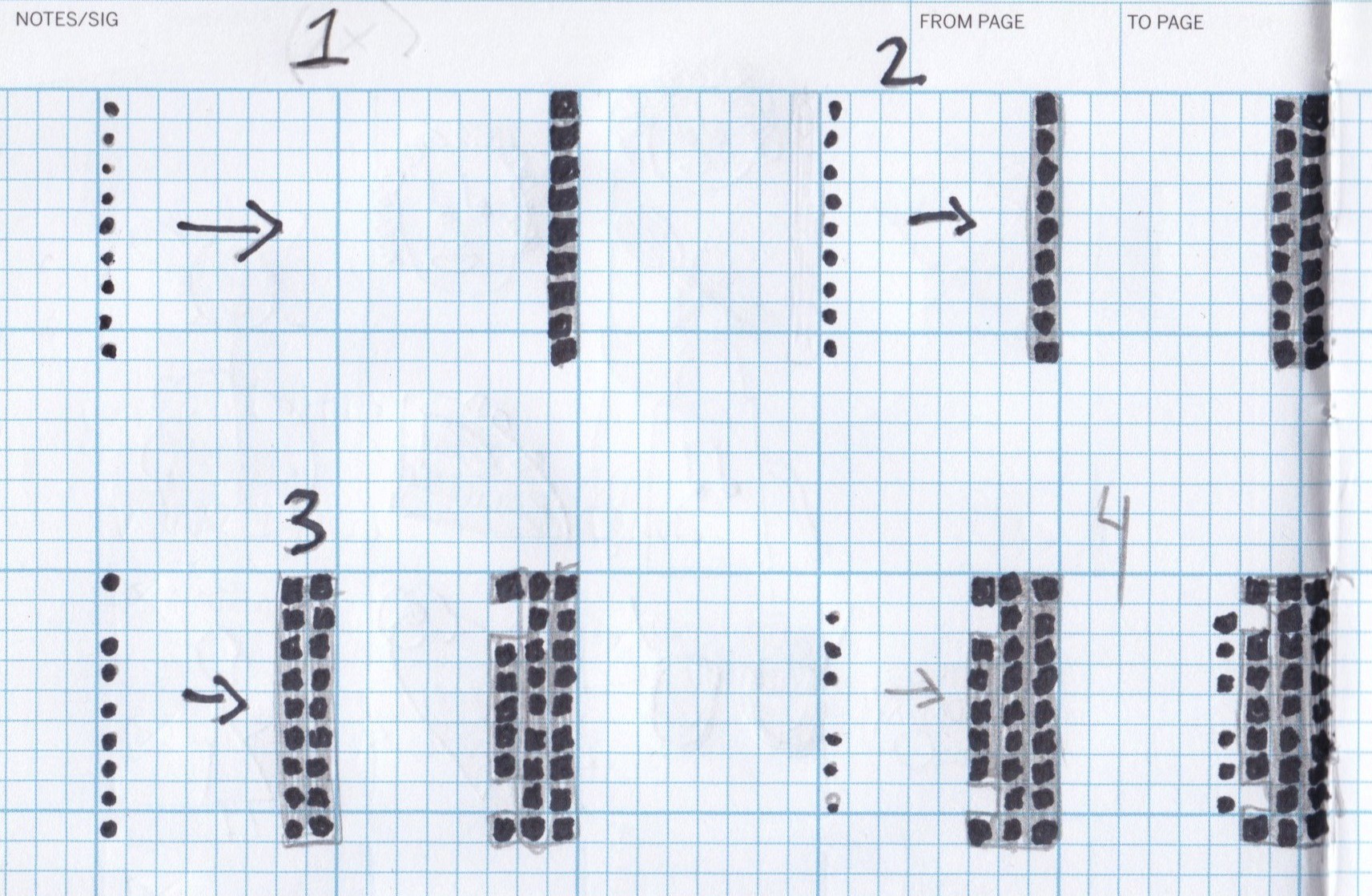
Let’s get sketchy:


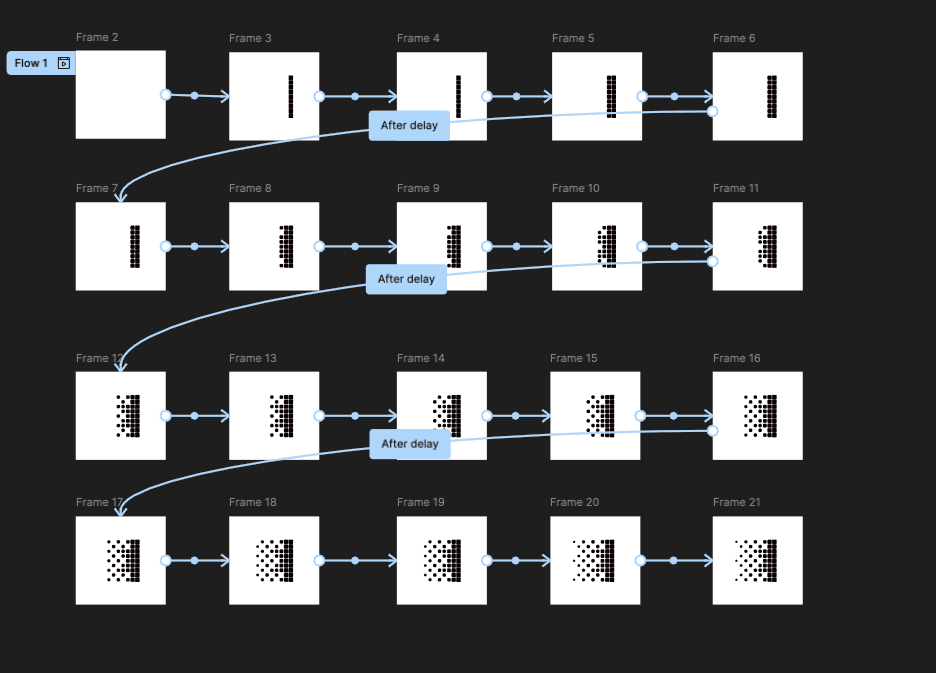
In my mind, the logo would animate from left to right. The screen would start blank, and then column by column, the pieces would flow from the left side of the screen towards the right, transforming from circles into squares with rounded corners as they landed in their respective rows.


Though Figma isn’t strictly a visual animation platform, I realized it had a few things working in its favor as the ideal platform for creating this flow.

Converting squares with rounded corners is actually quite easy in Figma; all I needed to do is: vectorize the full logo, duplicate a frame, adjust the corner radius for each shape on a frame, prototype a delay transition between each column’s entrance.

The full flow ended up looking like this:

And here is the finished product:

This animated glossa logo could show up all over the place, including in videos on title cards, as a loading icon any time Glossa is performing process that requires the user to wait, And potentially, as the very first thing the user sees after they create their accounts and begin the onboarding process.

User Flow

The majority of this experience would be a task flow with little to no deviation from the main path. The flow would mostly be linear. I include screenshots of existing screens (even though they may need to be changed dramatically) to help keep track of which brand new screens would need to be created.

This flow is broken down into three main sections:

Create Account, Onboarding, and Create Project


Create Account: This is where the user Inputs their email address, password, and full name. This section would remain largely the same, with one exception. We received feedback from three participants in our user research study that they typically prefer SSO (single sign on) over entering their email address and password manually. 

Glossa had already integrated an SSO experience into their “create account” flow, but the user is still asked to create a profile during the onboarding flow. They are asked to input their full name and upload an avatar image. During interviews, users felt this step was redundant, as the SSO intrinsically contains all of that information and could easily be pulled into Glossa automatically. Many existing tools take this approach; it would be a relatively easy way to reduce friction and the number of screens in a small but noticeable fell swoop. The red “X” within the onboarding flow represents the screen we could remove if the user signs in using SSO.

We recommend that, if the user chooses to create their account using SSO, Glossa automatically pull the user’s full name, email address, and avatar from the user’s external account (Google, Microsoft, Github etc.) No additional changes needed to be made to the Create Account experience. 


Onboarding: This section represents the fundamental thrust of our design project. Having run through the existing onboarding flow with several participants in the user interview stage, we would take their feedback and add descriptive language to create clarity wherever necessary, and simplify steps that were needlessly complex or obtuse.


Create Project: The main function of Glossa itself is its projects. Having completed the onboarding flow, the user won't get much out of the app unless they create a project. Therefore, while these are two separate processes, they are intrinsically linked during the first time user experience. We would take the same approach to the “Create Project” experience as we took to the Onboarding one - simplifying and illuminating Glossa’s approach so that the user understands what is going on at every step of the journey.

From Low to High Fidelity Prototyping:
Wireframes


The user flow acts as a catalog of which screens would be essential - including ones that already existed but needed a revamp, and ones that needed to be created from scratch. Because of space constraints, (see “No Scrolling,” above), we elected to go with expanding and collapsing components whenever possible.


Several new components would need to be created, including:


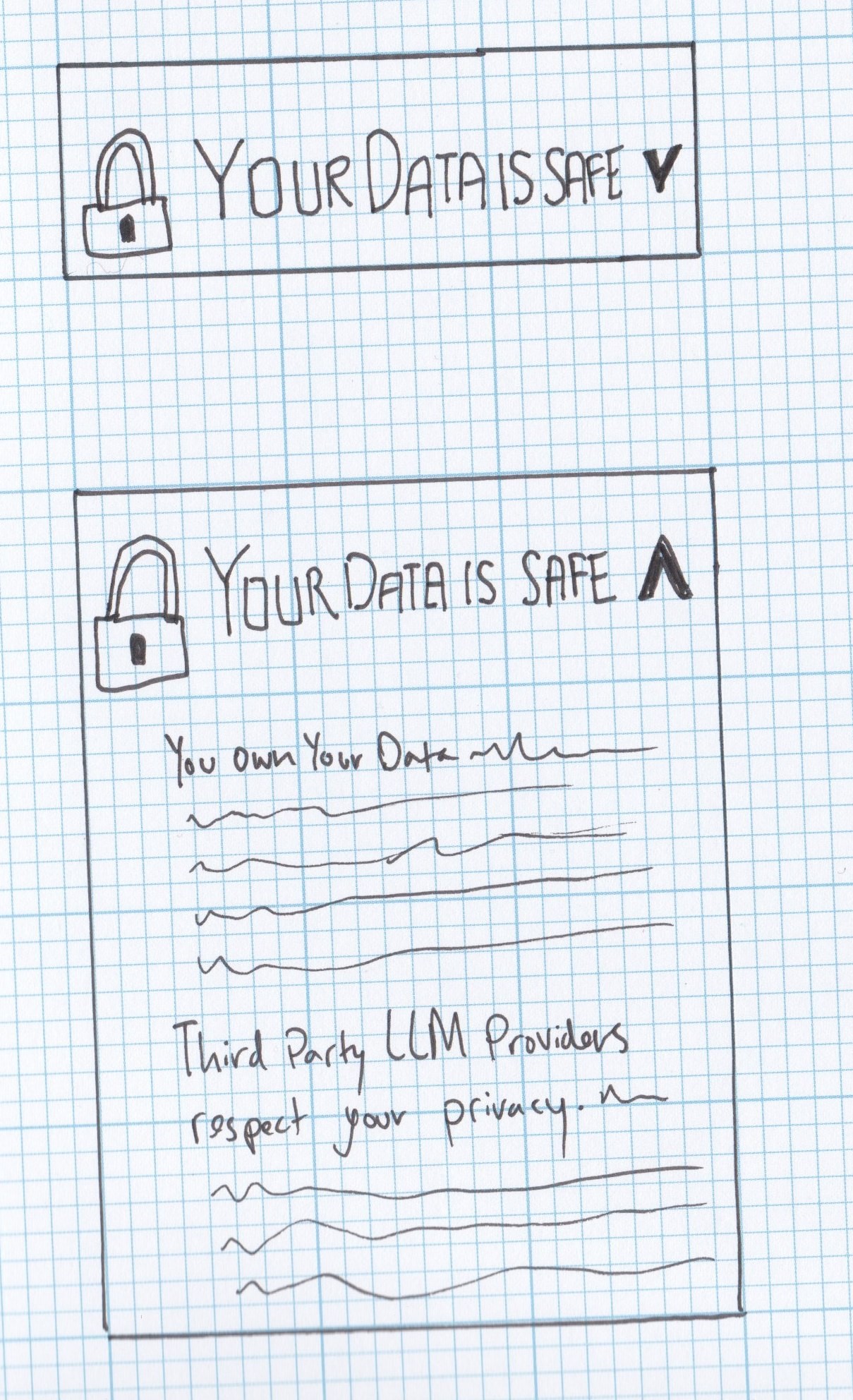
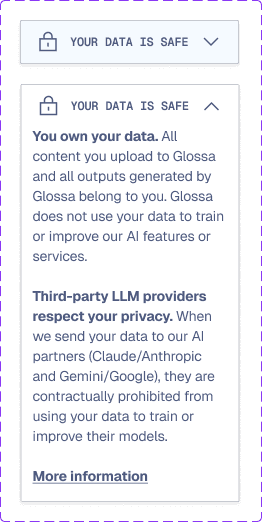
  • An explanation of Glossa’s data security policies, as several users brought this up as a chief concern. This explanation should be placed at the point where the user is asked to input their data, as this is where they would need reassurance that Glossa does not train its LLMs on user data, and it won’t retain their data for months or years down the line.

Low Fidelity Data Privacy Button

High Fidelity Data Privacy Button

An explanation of the specific ways Glossa interfaces with other apps, how the user sets them up and points Glossa only to the specific data they want to use for their projects.
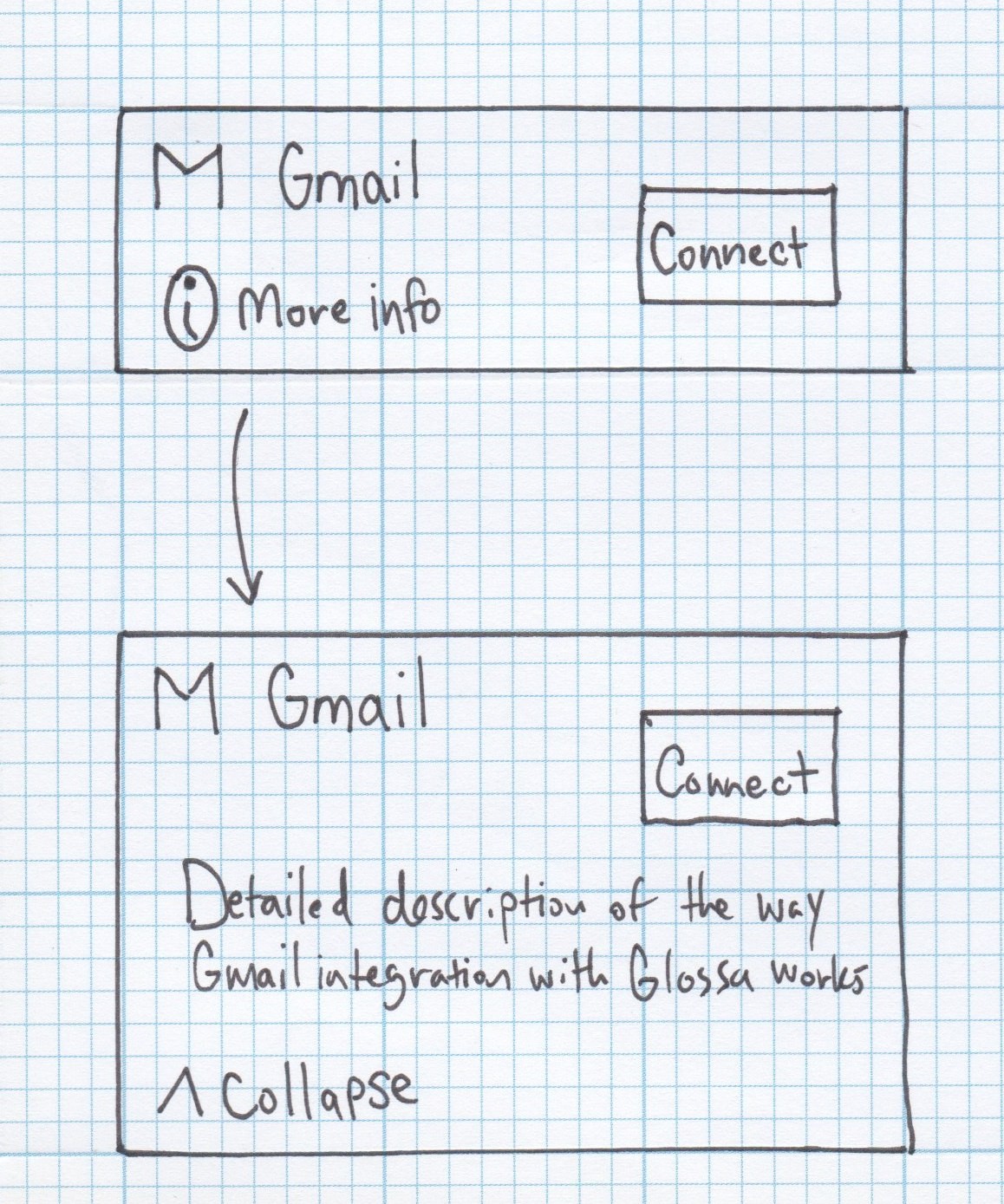
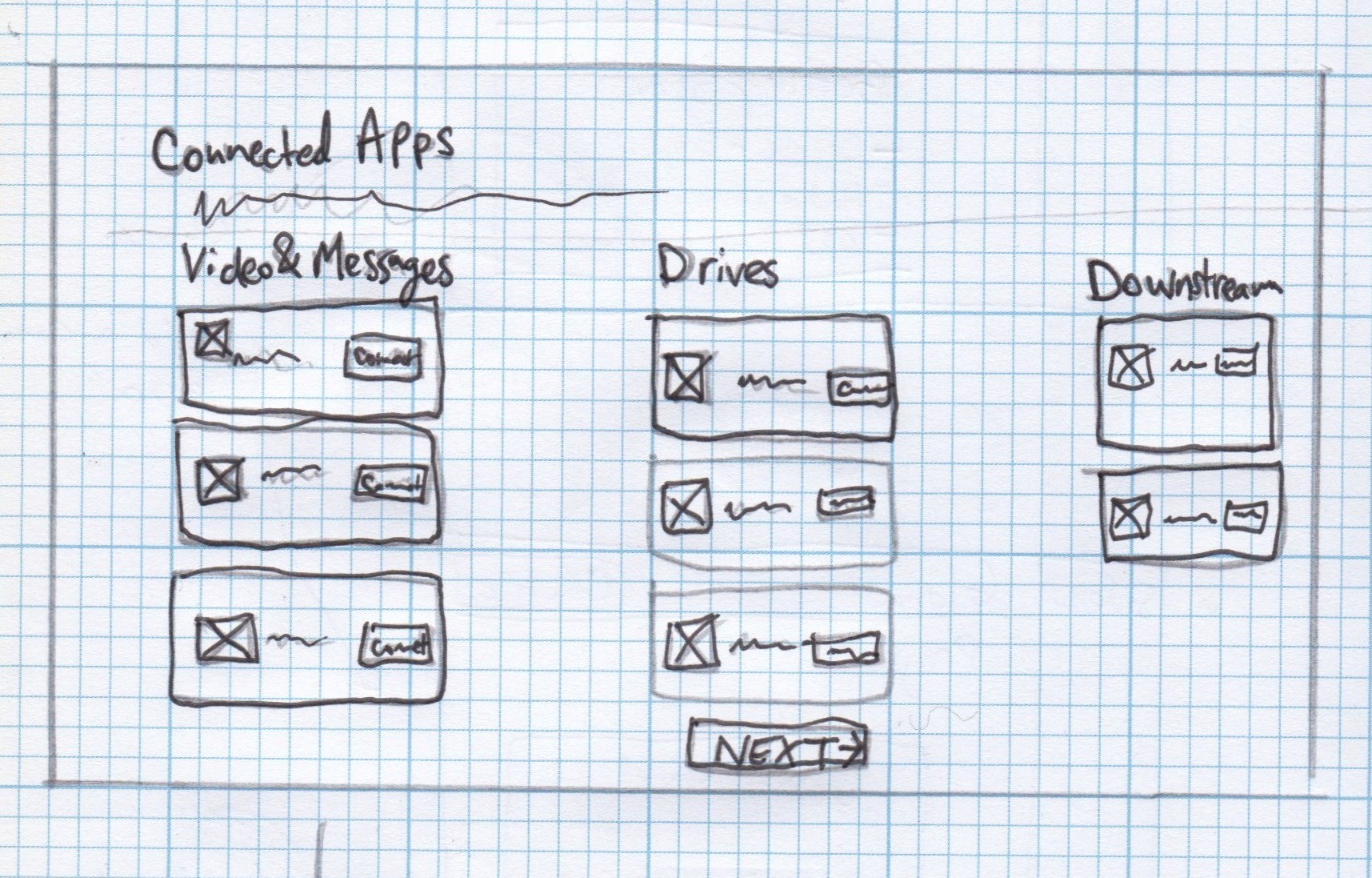
This second component in particular went through several iterations including. We asked questions like: Should the component have a hover state? Where should the “Connect” Button be in relation to the connected app name? How much text explaining the ways in which the app interfaces and pulls the user’s data is necessary?
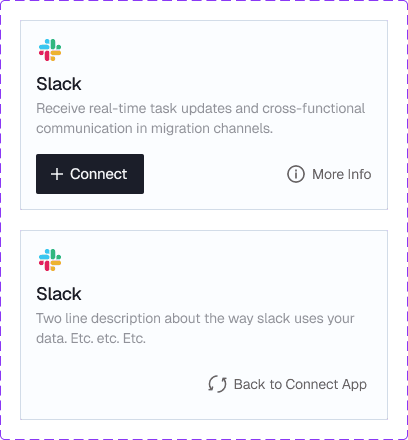

The primary consideration here was that we wanted to make all data fit on an initial screen without requiring the user to scroll. Based on our user research, one of the key aspects of an effective onboarding experience is SIMPLICITY. We want to reduce the potential overwhelm a user might experience, and one of the best ways to do that is to reduce the amount of information displayed on each screen. The user can choose to dive deeper and learn more if they want, but they shouldn’t be required to read about every potential connected app’s features when simply walking through an onboarding flow.

Usability Testing


Results:

While all who tried the original onboarding flow expressed that this new version was an improvement, our usability test results also revealed a desire for clarified terminology and contextual guidance. Several users also expressed a desire to see a thoroughly fleshed out example project to get a stronger sense of what Glossa could do for their own projects.


1. Universal Terminology Confusion (4 out of 4 users)

All four participants struggled with specific terminology throughout the onboarding process, indicating fundamental naming issues that would impact every user. For example:


  • "Project Capabilities/Features"

  • "Organization" vs. "Team" vs. "Company"

  • "Source System" and "Target System


2. Need for Contextual Guidance (4 out of 4 users)

Every participant expressed wanting more context about why information was being requested and what the system would do with it.


  • One user wanted to know upfront what information would be needed at each step, comparing it to discovering mid-wizard that "you need your credit card" without warning.

  • Another felt "a little bit lost" with the original onboarding and wanted "a high level overview of how I should set this up so I don't have to backtrack and redo it."

  • A third appreciated when instructions were clear but noted that "lots of other pretty things to look at" distracted from instructional text that "doesn't insist on being read."


3. Strong Demand for Example/Sample Projects (3 out of 4 users)

Three participants explicitly requested the ability to explore a pre-populated example project before creating their own.


  • Two users wanted sample data to understand best practices: "If there was another record row in there of … “example project” or something, I'd click on it and be like, okay, what does best of breed or … best practice look like using this tool?" He felt this was better than "the blank screen of like, now what."

  • The third preferred "hands-on, dirt under my fingernails" learning with example data over videos for complex scenarios.


4. Information Architecture Challenges (3 out of 4 users)

Multiple participants identified structural issues with how information is organized.


  • Client-first vs. Project-first setup: One user strongly advocated for inputting a client's data before getting to the specific project, which was opposite of our current flow.

  • Hierarchical organization needs: Two users emphasized the need for visual hierarchy. One recommended showing the organizational structure ("like a tree") on the first page.

  • When to define requirement categories: Multiple participants found it confusing to define requirement categories during initial project setup.


5. Data Source and Integration Clarity (3 out of 4 users)

Participants wanted more transparency about how integrations and data sources work.


  • One user questioned whether historical data would be imported from Slack ("I'm assuming it's not gonna take anything historical outta Slack") and needed clarity on one-to-one channel mapping.

  • Another noted uncertainty about what happens post-connection: "The question is what happens after you click connect?" but found the screen generally made sense once it was explained that each integration behaves differently.

  • A third highlighted the complexity of multiple data sources: His current project involves "monday.com, spreadsheets, and some stuff they're inventing as they go."


6. Positive Reception of Core Design Elements

Despite identified issues, participants appreciated several aspects of the redesigned experience.


  • One user praised the clean layout: "There's not too many options. There's a decent amount of white space. It focuses my eyes and doesn't let me wonder what all happens if I touch other stuff."

  • Another praised the time estimate on the opening screen ("I love the time, by the way. That's awesome") and the step-by-step wizard approach with numbered steps.

  • A third found the progress indicators helpful: "This is helpful. It kind of tells me what you need from me."

  • The breadcrumb navigation was recognized as useful, though one user suggested removing "Project Setup" from the initial view since it's a separate container of tasks.

Iterations:

Before

After

Screens revised included:


  • Renaming Project Capabilities to Project Categories.

  • Establishing consistent naming conventions with “Team” (as opposed to “organization” or “company”)

  • Removing the “Project” breadcrumb from the onboarding flow, since that became its own series of breadcrumbs itself.

  • Standardizing UI patterns across screens: Nick identified inconsistency between screens with and without input boxes. Maintain consistent visual design and component usage throughout the flow. Position instructional text close to relevant input fields.

  • Adding "you can change this later" messaging: Jeff emphasized wanting to know when he can revert changes and Jeff specifically wanted to know he could update client structures later. Add reassuring copy throughout that decisions aren't permanent.

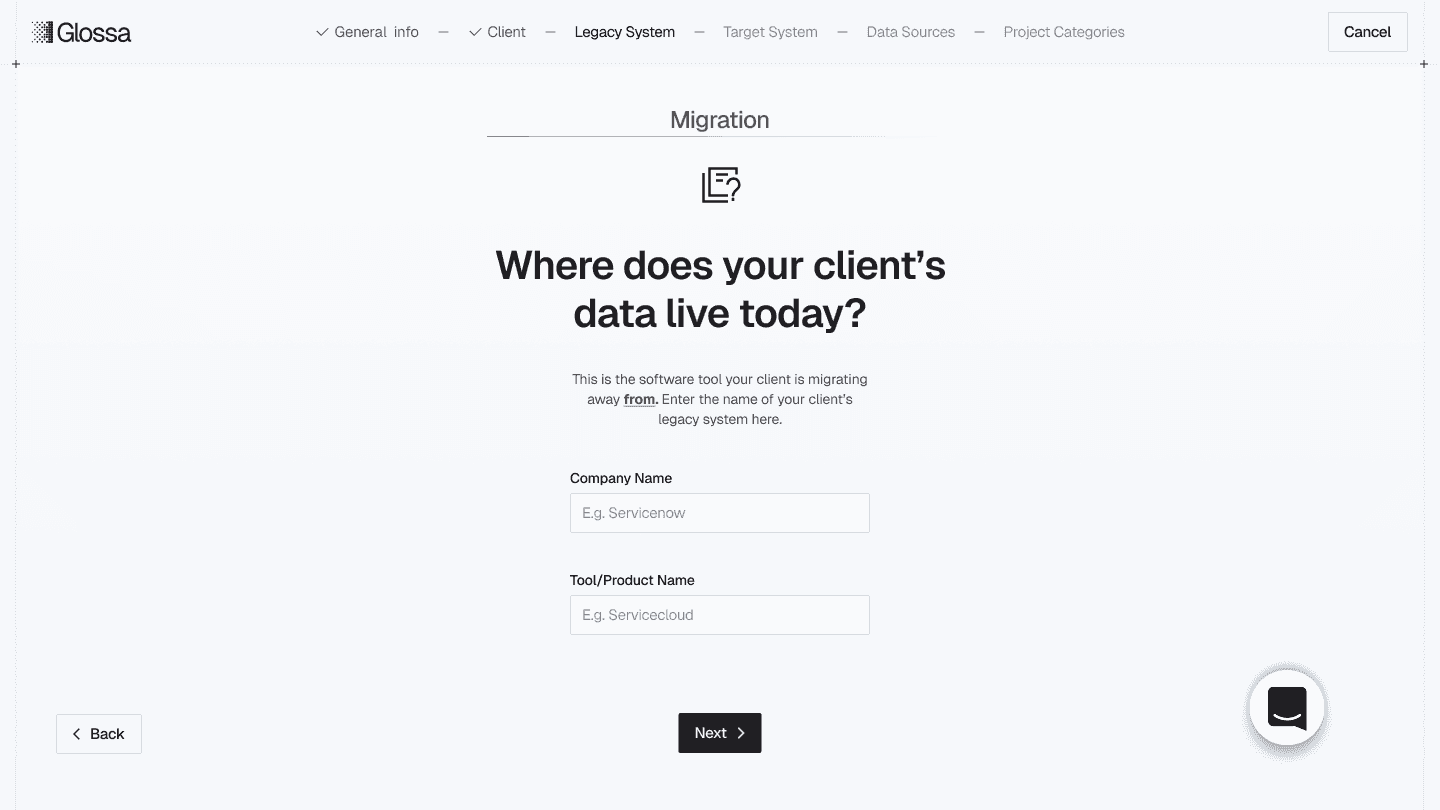
  • Reframing source/target location of existing data as a user-friendly question like "Where is your client's data today?" and "Where are they moving to?

  • Adding expandable information for Connected Apps: including collapsible sections explaining what data transfers, how connections work, and limitations (e.g., no historical Slack data). These would be short explanations that assuage users’ concerns about unintended data accidentally being brought into Glossa. These explanations would explain in a few short sentences how each connected app works so that the user knows what to expect when they choose to connect it.

  • Reorganizing screens so that the user inputs client information before project-specific information. This allows users to create client records before projects to support real-world scenarios of clients with multiple projects over time. 

  • Adding role definitions and permissions clarity - a short explanation of what permissions are available to a “member” vs. an “owner.”


Additional Recommendations to our stakeholders:

Several requests from the users were outside the scope of this UX project, and needed considerable input from the developers. We packaged up those requests seperately with our recommendations. Those included:


  • Creating and integrating a sample/demo project: Three out of four participants requested this. Offer it after initial setup completion but before users create their first real project. Include pre-populated requirements showing conflicts, duplicates, and different categories so users can explore hands-on without risk.

  • Making a short video tutorial (45-90 seconds) that tells you what the onboarding experience will entail. This could go at the very beginning of the experience to set the stage elegantly and succinctly.

  • Adding a Help Button in the event the user gets stuck, has additional questions about a specific screen, or wants to learn more in a different way. Glossa already has a business relationship with Intercom (using it in their Help Center) so it wouldn’t be a huge lift to incorporate it into other places on the app too.

  • In tandem with the “Sample/Demo project,” a tooltip walkthrough could be useful to showcase within an existing project. Since the Glossa experience is so nuanced and fundamentally “new,” the user may very well benefit from onscreen prompts that function as a guided tour through the app. 

Implementing and Validating the Revised Onboarding Experience

Using Posthog, we will be able to track each individual users’ full onboarding experience and test the effectiveness of the new onboarding flow. 

Once the revised user experience has been released (in about 2 or 3 weeks), we will be able to compare a “before” implementation and “after” implementation flow.


We will explore metrics in Posthog like rate of completion of the onboarding process overall, frustrated clicks, task success rates, time spent on each screen, and how the users interact with subsequent screens after onboarding to evaluate the effectiveness of the new onboarding flow - shortfalls or triumphs - for an effective compare/contrast between the old and new onboarding experiences. 

Thanks for reading! I’m open to new opportunities and projects. Feel free to reach out.

ben.einstein@gmail.com

(323) 828-9901